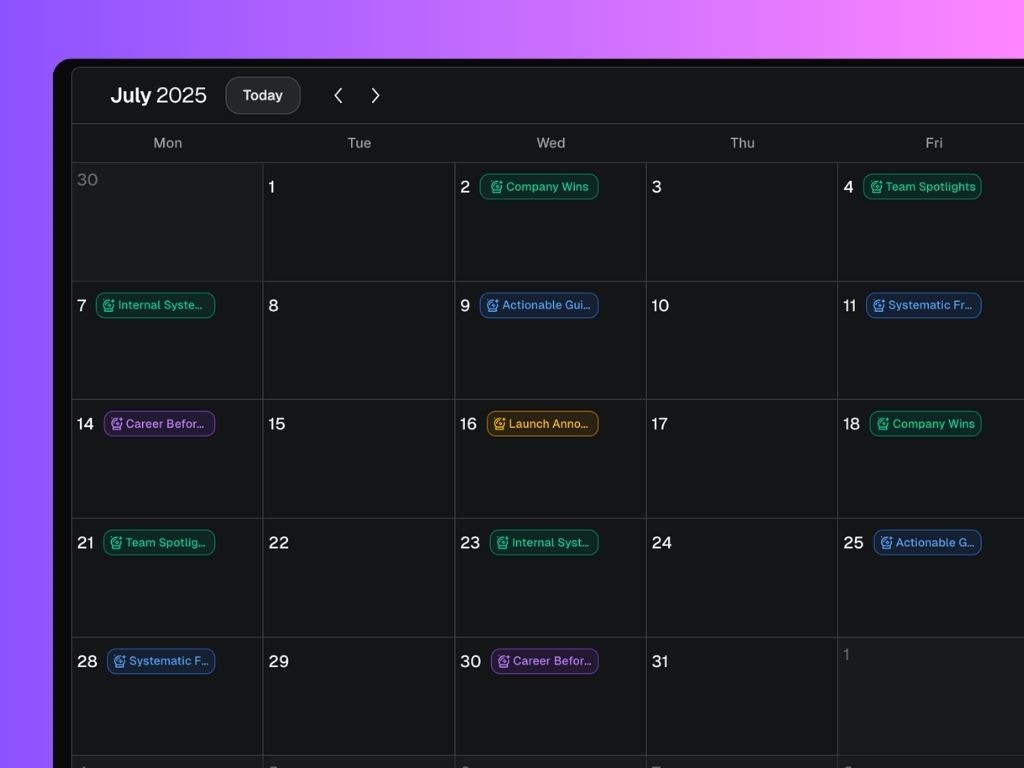
You can filter which personal brands calendar you want to see in the top right corner.
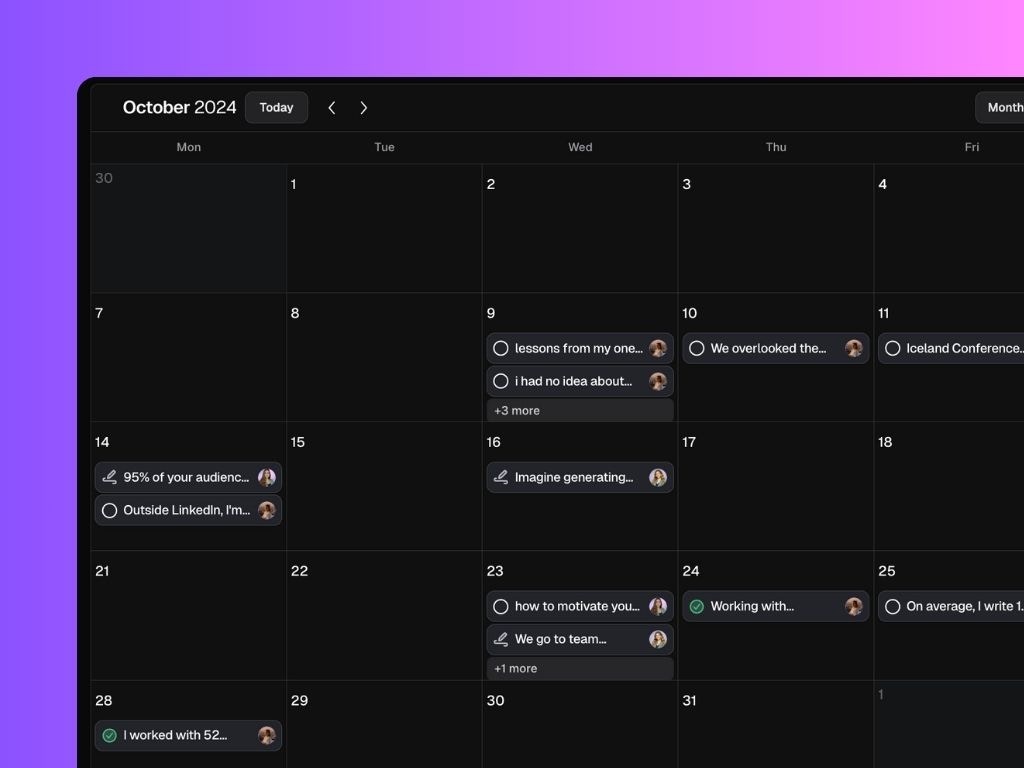
What you can do:
- See all drafted, scheduled, and published posts at a glance by personal brand.
- Switch views between month and week to better match your planning workflow.
- Add notes to any date and assign them to any personal brand: ideal for campaign ideas, content reminders, or creative inputs.
- Schedule posts directly from the calendar by selecting a draft and assigning a time slot.
- When scheduling posts, you can filter the drafts by format (e.g., Personal Milestones, Launches) to stay on top of your strategy mix.
What you can do on the Calendar page:
1. See all planned & scheduled posts at a glance
Each post you’ve planned or scheduled to a specific date appears as a clickable card on your calendar. From these cards, you can:- Open and preview the post
- Track its status
- Jump straight into editing
- Reschedule or unschedule it
- Add a Label or Assign it to a Campaign (Business Only)
Using the “Remove post from calendar” only hides it from view — it doesn’t change its stage. If the post is scheduled, it will still be published. To make sure a scheduled post won’t go live, you’ll need to actively unschedule it.
2. Add Notes or Schedule a ready-to-go post
Click+ in any day of the calendar to add a Note to that day or schedule a post from your pipeline that’s ready to be published.
3. Switch between views
Use the Month/Week toggle to adjust your view depending on how detailed you want to go. Month view gives you the big picture; week view helps you focus on the immediate next steps.4. Customize your Scheduling Settings
Click “Settings” to:- Set your timezone
- Choose whether your week starts on Monday or Sunday
- Define your posting schedule (e.g., every Tue/Thu/Fri at 9am). Your preferred posting time will show up as a purple slot in the weekly calendar.
5. Get Post Format suggestions based on your Strategy
When viewing the calendar for a single Personal Brand, Scripe helps you stay on track with your content goals by displaying suggested content pillars as color-coded cards. These are auto-generated based on your content strategy. Click on a suggestion to instantly open relevant post drafts within that post format, ready for you to schedule or fine-tune.