Documentation Index

Fetch the complete documentation index at: https://docs.scripe.io/llms.txt

Use this file to discover all available pages before exploring further.

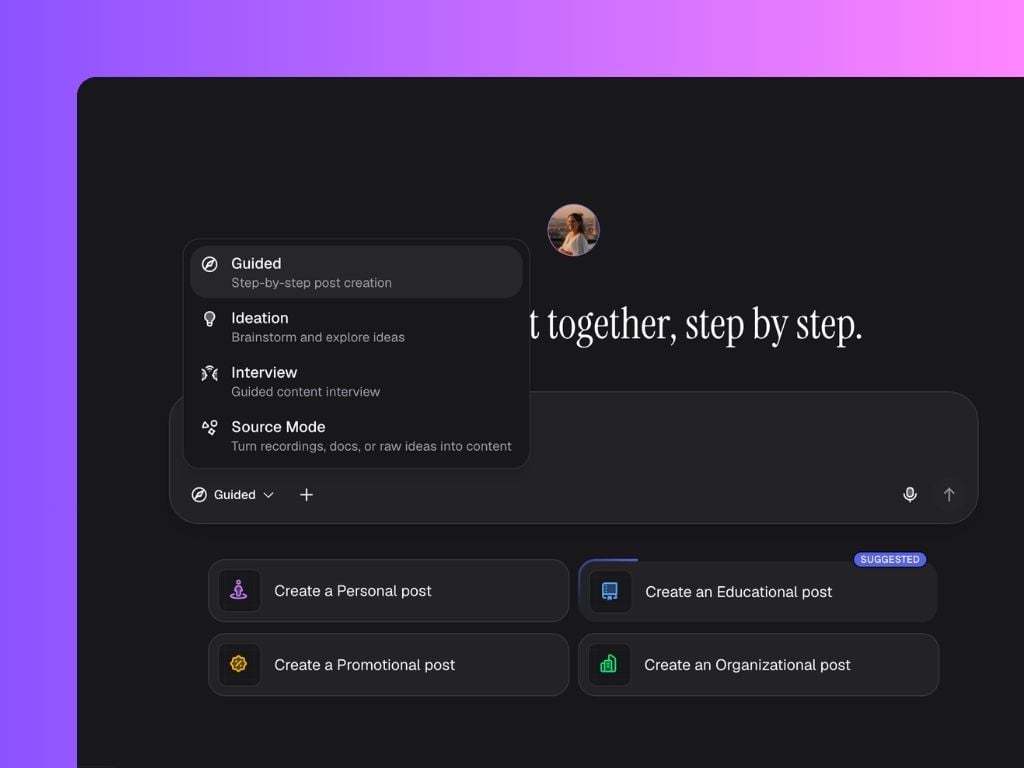
Scripe offers four different chat modes designed for different types of content creation workflows. Whether you already know what you want to post, want to brainstorm ideas, prefer talking instead of typing, or want to repurpose existing content — there’s a mode built for it. The four chat modes are:
  • Guided Mode
  • Ideation Mode
  • Content Interview Mode
  • Source Mode
Each mode helps you create content in a different way depending on your goals and workflow.

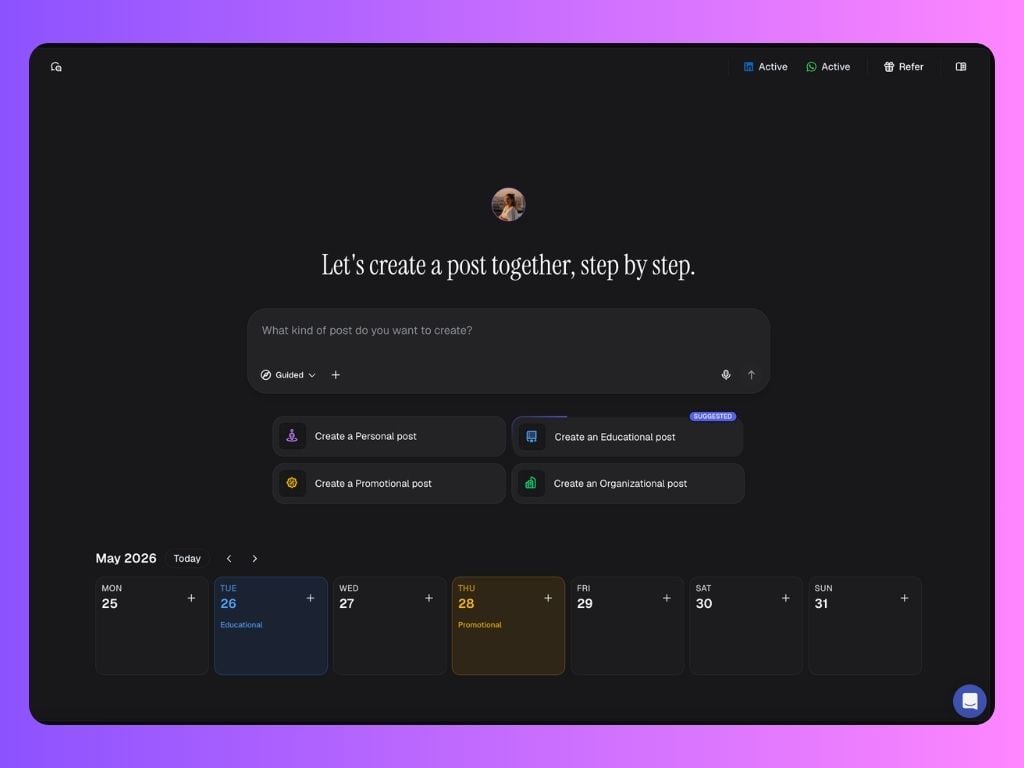
1. Guided Mode

This is the ideal mode if you open Scripe and think:
“I need content for next week, but I don’t know where to start.”
In Guided Mode, Scripe acts like a personal LinkedIn content coach that already understands:
  • your content strategy
  • your previous posts
  • what performs well on LinkedIn
  • your tone of voice
  • your connected knowledge sources
The mode also works together with your content calendar and strategy recommendations. For example, if your next recommended content pillar is “Educational,” Scripe may suggest creating content that fits that direction based on your strategy and what typically performs well on LinkedIn. Once you select a direction, Scripe starts guiding you through a series of questions to pull insights, experiences, frameworks, and ideas out of your head. It also gives examples along the way to help you answer faster and with more clarity. Instead of staring at a blank page, you simply answer the prompts while Scripe structures the content for you.

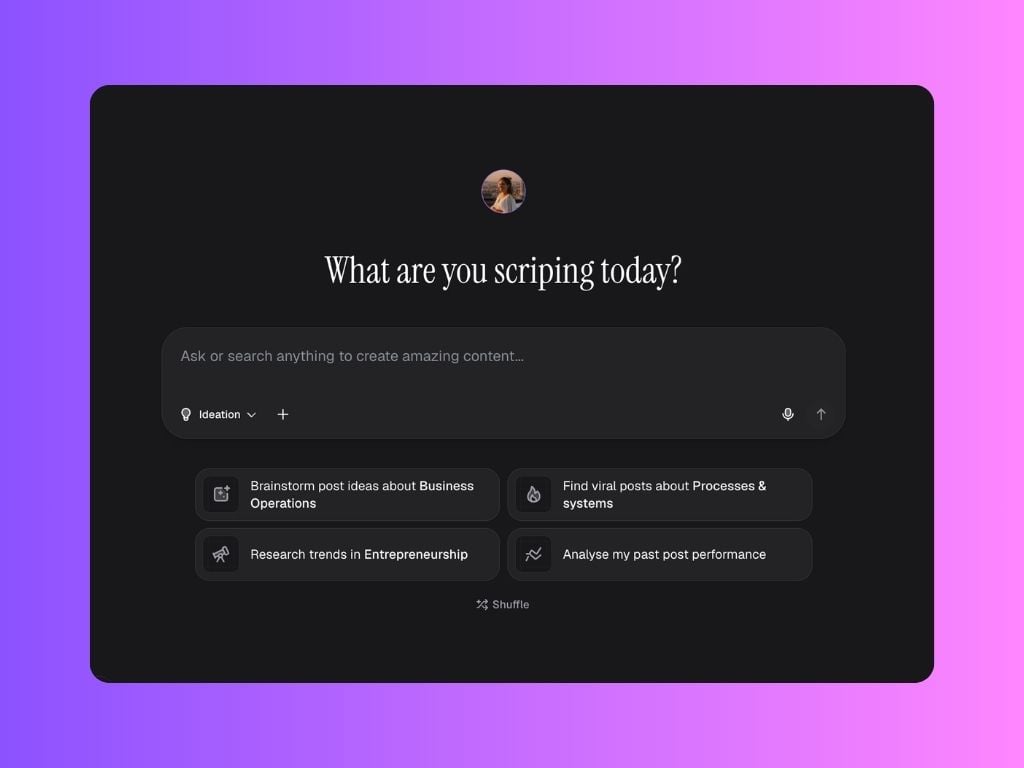
2. Ideation Mode

Ideation Mode is designed for brainstorming, exploring ideas, and discovering new content directions more freely. Instead of following a structured flow, this mode gives you space to experiment, ask questions, analyze trends, and spark new ideas. For example, you can ask Scripe open-ended questions like:
  • “What’s trending right now in product building?”
  • “What content formats are performing well for founders?”
  • “What should I post about this week?”
Scripe analyzes insights from millions of LinkedIn posts to identify trends, themes, formats, and angles that are currently performing — helping you find inspiration backed by real platform data. Unlike Guided Mode, Ideation Mode is intentionally more open and flexible, making it ideal when you want to brainstorm, explore possibilities, and develop ideas before turning them into content.

3. Content Interview Mode

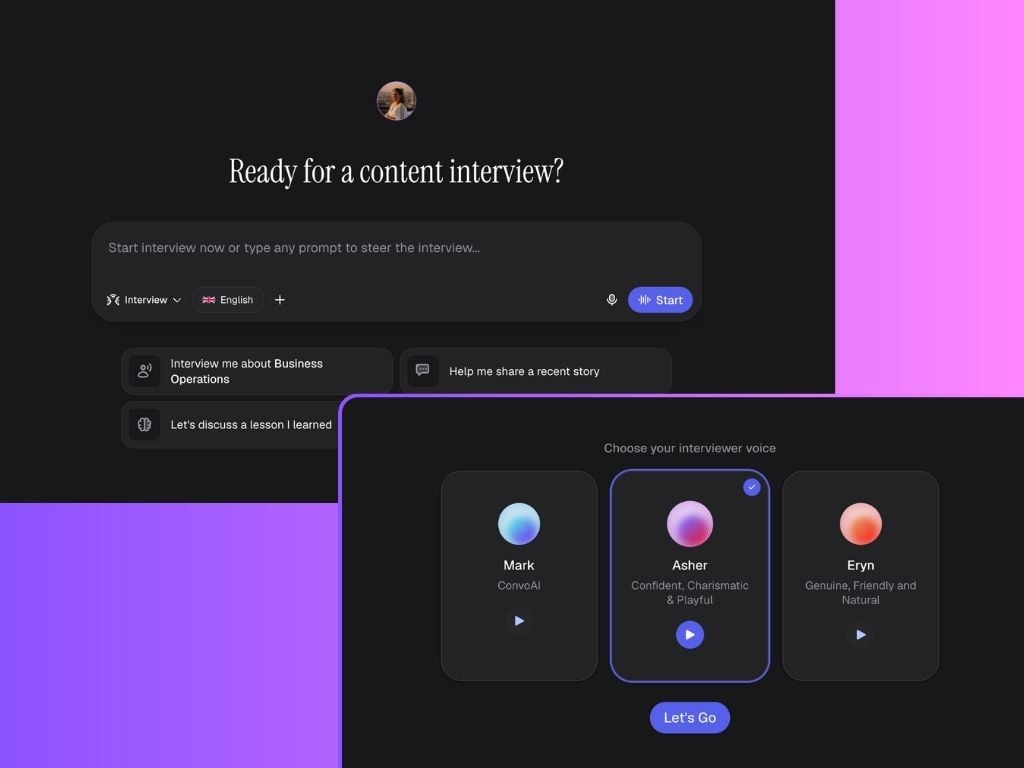
Content Interview Mode is similar to Guided Mode, but optimized for people who think better by talking. The goal of this mode is to make content creation feel more natural and conversational. Instead of typing your ideas, you speak freely while Scripe listens, transcribes, and turns your words into content drafts. In this mode, you can:
  • speak freely about a topic
  • explain stories or experiences naturally
  • brainstorm out loud
  • talk through frameworks and opinions
Scripe then turns the conversation into structured LinkedIn content.
You can also customize the interview experience by selecting different speakers and languages. The Content Interview is currently available in English, German, Spanish, French, Italian, and Portuguese.

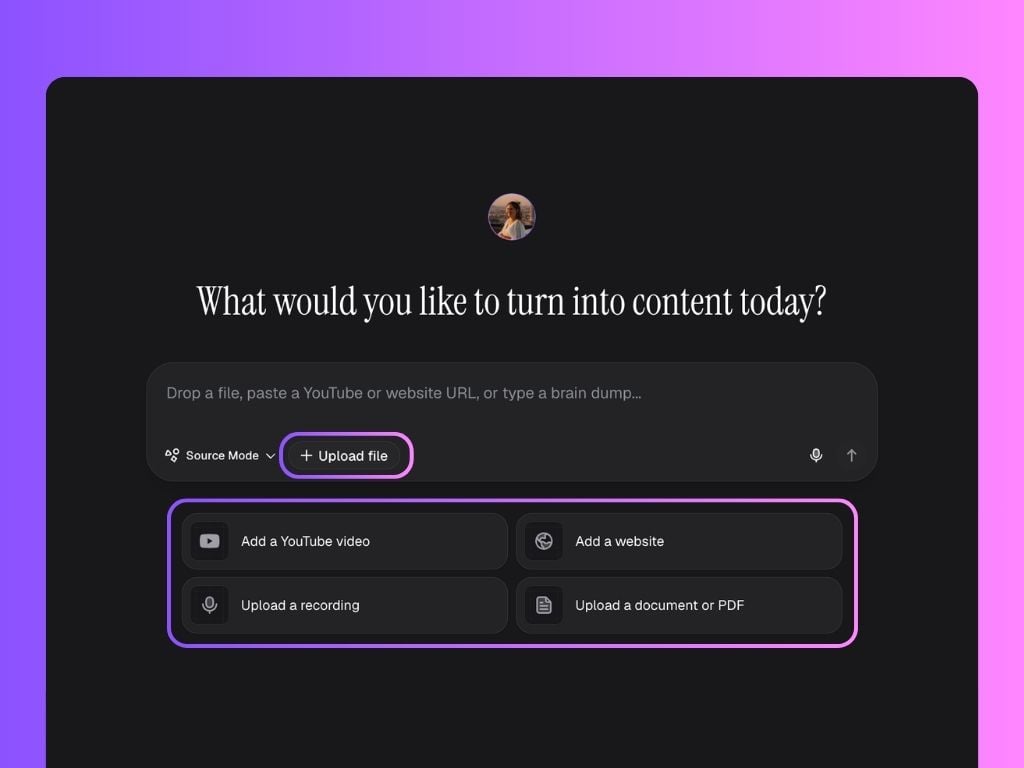
4. Source Mode

Source Mode is built for repurposing long-form content into LinkedIn posts.
If you already have existing content such as:
  • YouTube videos
  • Podcasts
  • Websites
  • Blog posts
  • Documents
  • Notes
  • Recordings
You can upload them and let Scripe analyze the content and help you turn it into multiple post ideas and drafts. The platform can also estimate how likely the generated content is to perform well based on existing LinkedIn patterns and insights. Once the source is uploaded, you can continue working with it by:
  • generating different post angles
  • extracting frameworks or key insights
  • transforming long-form content into short-form LinkedIn posts
For example, you could ask Scripe to:
  • create posts from a podcast episode
  • rewrite content in a more personal tone
  • turn a document into educational content

Upload Files & Reply with Voice Notes

Across all chat modes, you can add additional context to the conversation by clicking the + button in the chat bar. Here, you can:
  • select existing files from your connected Sources
  • upload new documents, notes, transcripts, PDFs, and other materials for Scripe to use as context
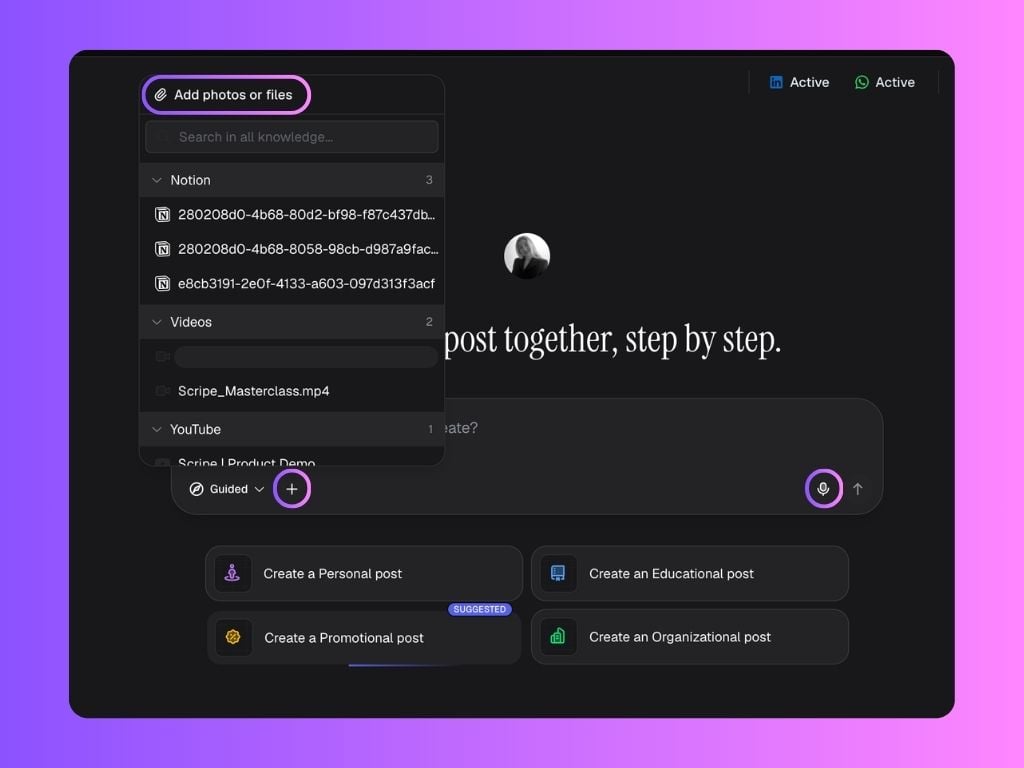
This helps Scripe generate content that is more personalized, accurate, and aligned with your knowledge and experiences. You can also click the microphone icon to respond using a voice note instead of typing. This is especially useful if you prefer talking through your ideas naturally or want to capture thoughts quickly without writing everything manually.

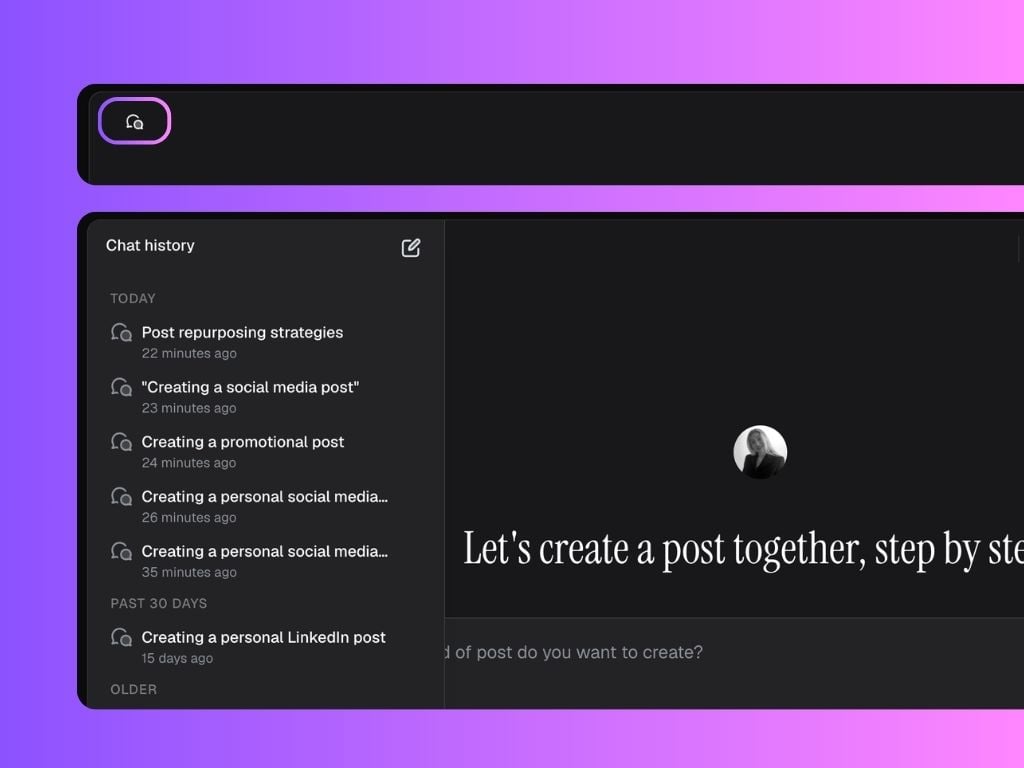
Accessing Your Chat History

You can access your previous conversations at any time by clicking the chat bubbles icon in the top-left corner of your Personal Brand dashboard. There, you’ll find your chat history across all chat modes, making it easy to:
  • continue previous conversations
  • revisit old post ideas and drafts
  • reopen brainstorming sessions
  • delete old chats