

TL;DR: Why Agencies Use Scripe
- Manage unlimited clients & brands with one login.
- Run entire employee advocacy programs in one workspace.
- Save ~80% of content production time with AI drafts & repurposing.
- Automate client reporting with analytics dashboards.
- Deliver more content, faster, without scaling headcount.
Managing Clients at Scale in Scripe
Before working with a client, we recommend that you:- Get familiar with Scripe – follow this step-by-step guide to set up your own workspace first and learn the platform inside out.
- Join our Workshops – bring questions, learn best practices, and get support.
1. Workspaces: Organize by Client
In the Business plan, you get unlimited workspaces. Workspaces act as collaboration hubs where you and your team (or your client’s team) can manage everything in one place.- One client = one workspace → Keeps their content, analytics, and strategy completely separate.
- Unlimited personal brands & users per workspace → Add as many LinkedIn accounts and collaborators as you need. Pay per LinkedIn account connected.
- One bill across all workspaces → Even if you manage dozens of clients in separate workspaces, everything is handled under a single subscription.
- DFY Offer Set-Up: Managing Client’s Content in Scripe
- DWY Offer Set-Up: Working in a Client’s Workspace in Scripe
2. Personal Brands: LinkedIn Accounts you connect with Scripe
A personal brand in Scripe is simply one LinkedIn account connected to your workspace.-
Billing scales with the number of LinkedIn accounts connected.
- Each additional LinkedIn account you connect to your workspace as a full seat in the Business Plan costs 45 euros/month.
- LinkedIn accounts can also be connected as Amplifiers (auto-engagement + analytics access only). An Amplifier seat costs 20 euros/month.
- As an agency, you can add personal brands across multiple workspaces, all tied into your single Business subscription.
3. User Roles & Permissions
When inviting someone to a workspace, you can assign roles:- Admin – Full access to everything.
- Manager – Manage members and accounts. No billing access.
- Creator – Can fully create and post on assigned accounts.
- Assistant – Supports with posts but can’t publish.
- Client – Read-only review of assigned posts + analytics.
4. Switching Between Workspaces
- Go to Overview in the sidebar.
- Open the Switch Workspace menu.
- Select the workspace you want to enter.
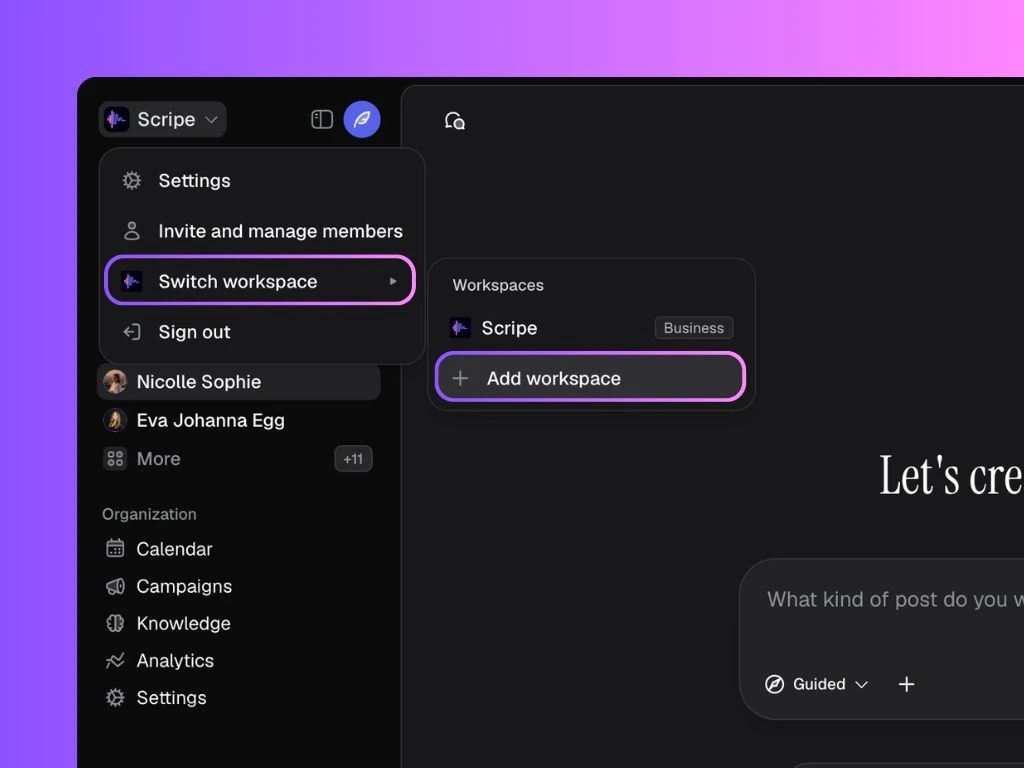
5. Powerful Collaboration & Content Creation Features:
Analytics Dashboard View combined analytics for all personal brands in a workspace, perfect for reporting total reach, impressions, and engagement to clients.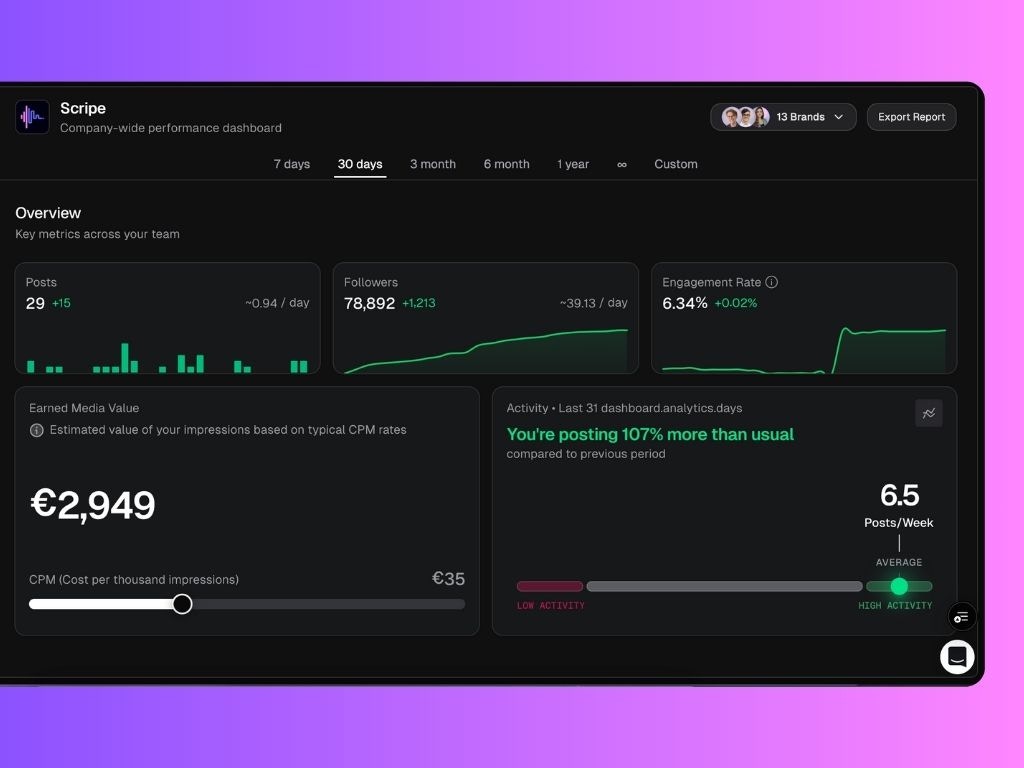
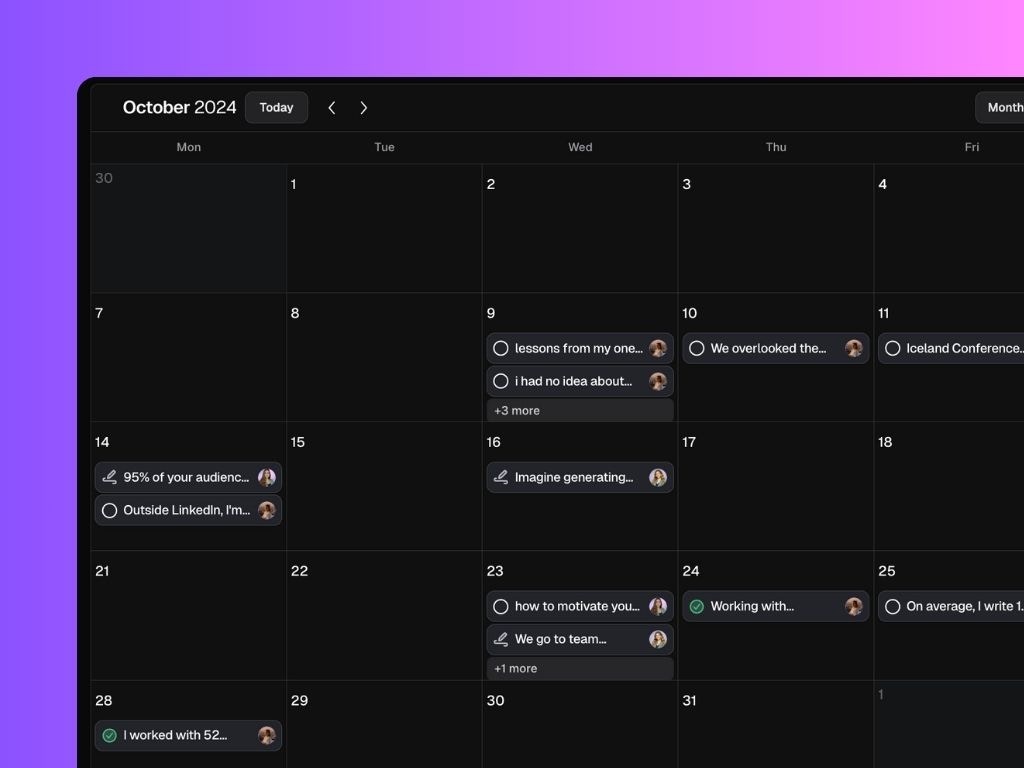
- See all posts from all personal brands in one place.
- Add notes for specific personal brands (e.g., “Post about topic X next week”).
- Track who posted what and when.
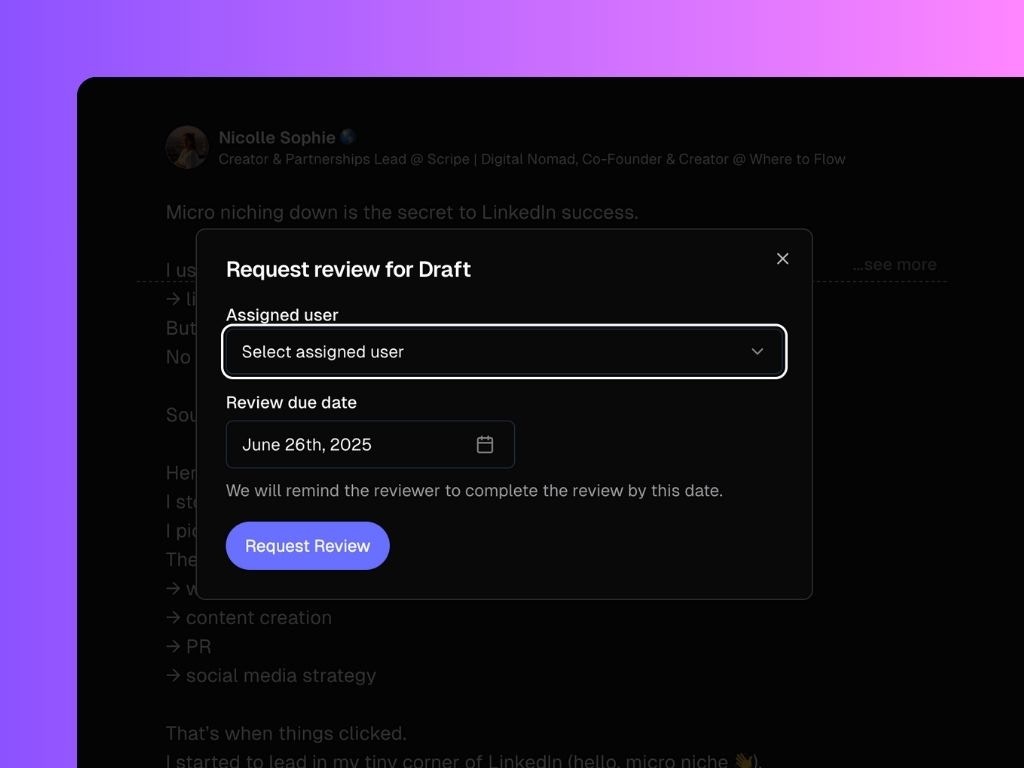
- You can request content reviews from other users.
- Assign a reviewer and a deadline, and they’ll get an email and notification.
- Store all client material in one place: transcripts, notes, websites, and random briefs.
- Define a content strategy for your client and get done-for-you posts generated every week.