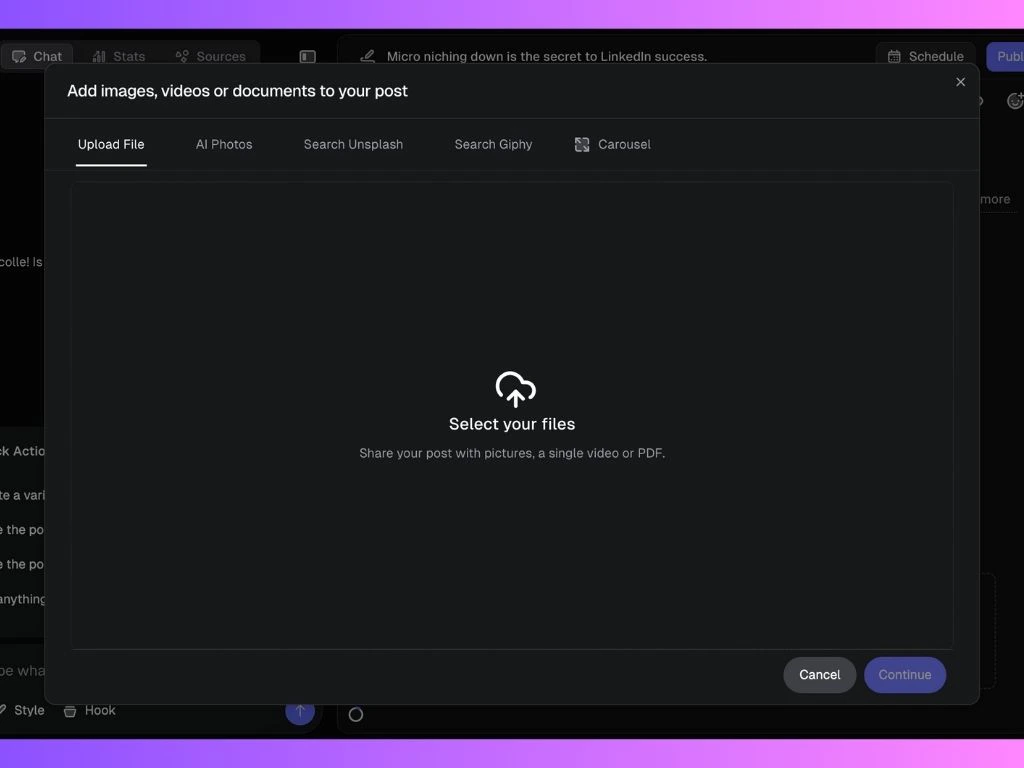
Use the Add Media button in the editor to upload visuals that boost engagement and bring your content to life.

Media Suggestions

Media Suggestions show you which post format (like a carousel) is likely to perform best based on data from similar posts. Scripe explains why the format is recommended and lets you add it with one click, so you can choose the most effective way to publish without guessing. Media Suggestion

How to Add Media to your Post

  1. In the post editor, click “Add media to your post”
  2. A pop-up will appear where you can choose what to upload:
    • Image: Upload photos from your device
    • Video: Share a short video clip
    • PDF: Upload a carousel or any document
  3. You can also explore:
    • AI Photos to generate on-brand images of you in seconds.
    • Unsplash for free, high-quality stock images
    • Giphy to add a fun GIF to your post
    • Carousel to transform written content into a polished, swipeable LinkedIn carousel, ready to catch attention and boost engagement.
Editor Media Once uploaded, your media will be attached to the post preview and ready to publish.
To upload a Scripe carousel, download it as a PDF and upload it here—or directly on LinkedIn via the “Document” option for best formatting.

LinkedIn Media Upload Requirements

When uploading media files to Scripe for publishing on LinkedIn, it’s important to ensure your files meet LinkedIn’s format and size requirements. Below is a quick guide to what’s supported:

📄 Documents

  • Max File Size: 100MB
  • Max Pages: 300
  • Supported Formats:
    • PPT, PPTX
    • DOC, DOCX
    • PDF

🎥 Videos

  • Length: 3 seconds to 30 minutes
  • File Size: 75KB – 500MB
  • Format: MP4 only

🖼️ Images

  • Max Resolution: 36,152,320 pixels (e.g., 6016 x 6016)
  • Supported Formats: JPG, PNG, GIF
  • GIFs: Up to 250 frames supported