

How to use Notes
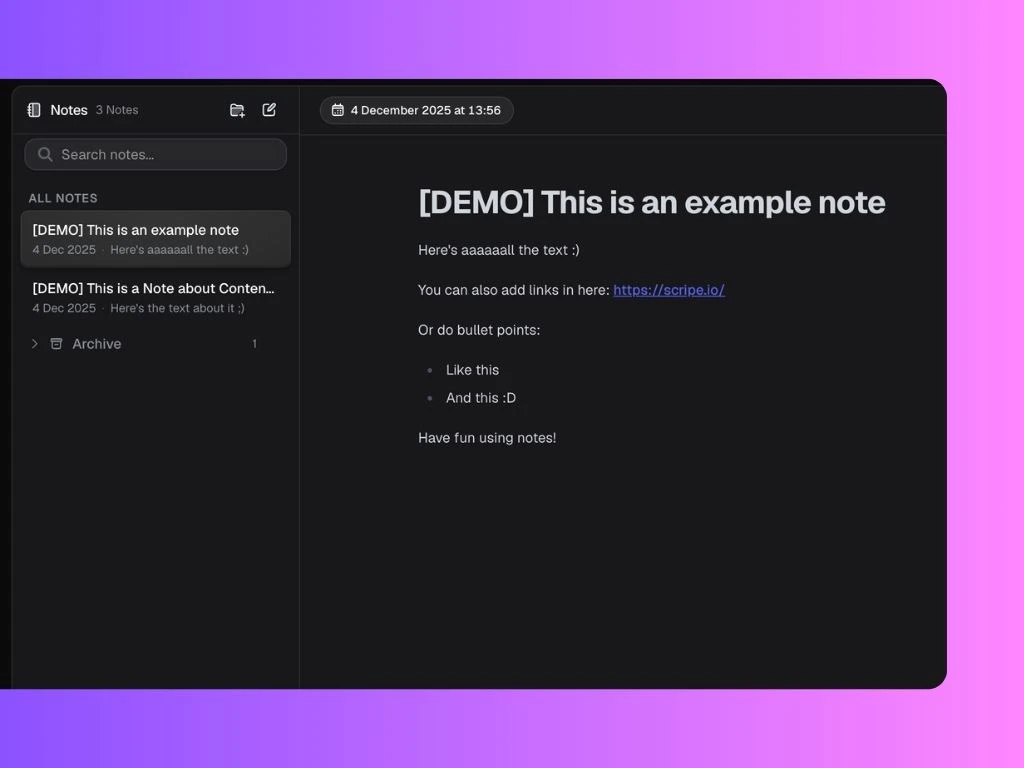
You can create a new note anytime by clicking the pencil icon inside the Notes page. Each note includes a title and a rich text editor.Notes are automatically saved as you work on them.
Organize Notes with Folders
You can organize your notes into folders to keep your workspace clean and easier to navigate. To create a folder:- Click the New Folder icon
- Enter a folder name
- Choose an icon or emoji
- Click New Folder
- Content pillars
- Clients
- Campaigns
- Topics
- Personal ideas
- Draft stages
Use the search bar at the top of the Notes sidebar to quickly find notes by keyword, topic, or title. This makes it easy to revisit old ideas and reuse past content inspiration.