

1. WhatsApp Integration (Fastest & Recommended Option)
Scripe integrates with WhatsApp so you can collect your clients’ input easily.- Send your client a short list of themes or guiding questions (e.g., “What’s a recent win you want to share?” or “What’s a challenge your customers are facing right now?”).
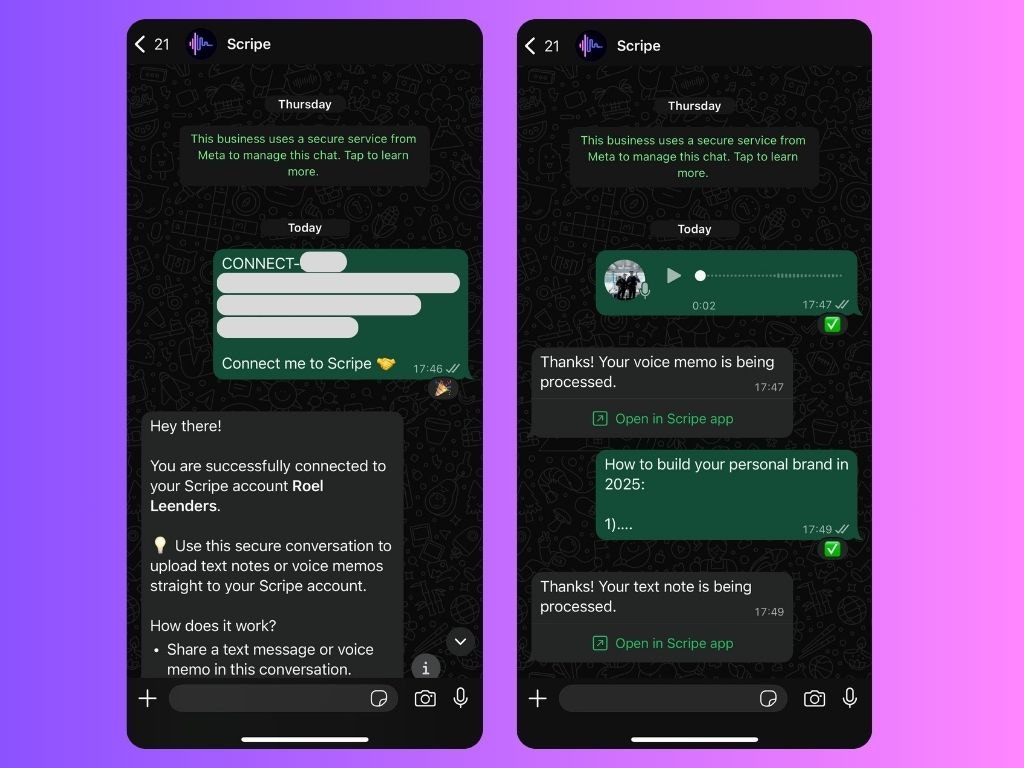
- They send their reply to the connected Scripe WhatsApp with a voice note or text message.
- Let them know they don’t need to polish their answers. They can reply just like they would to a friend — raw thoughts, stories, or reflections are perfect.
- The input flows directly into Scripe, to the Sources tab, where you can transform it into ready-to-use posts.
How to Connect a Client’s WhatsApp with Scripe
To capture content from WhatsApp, you’ll first need to connect the client’s WhatsApp account to their personal brand in Scripe:- Go to Settings.
- Select the client’s Personal Brand.
- Scroll to WhatsApp Connections and click Add Connection.
- A QR code will appear — share this with your client.
2. Other Ways Clients Can Provide Input
Besides WhatsApp, you can collect all sorts of inputs from clients and upload them to Scripe to repurpose into content:- Documents or PDFs → Strategy decks, case studies, reports.
- Long-form text → Blog posts, newsletters, or notes.
- YouTube or Webinar recordings → Talks, interviews, or panels.
- Client Calls → Meeting recordings (if your client is comfortable sharing them).
- Async Content Interviews → Share a short questionnaire (Google Form, Typeform, etc.), then upload their written answers to Scripe.