> ## Documentation Index
> Fetch the complete documentation index at: https://docs.scripe.io/llms.txt
> Use this file to discover all available pages before exploring further.
# Calendar
The **Calendar** gives you a clear overview of all scheduled content, helping you align across personal brands, themes, and posting cadence.
You can filter which personal brands calendar you want to see in the top right corner.
### What you can do:
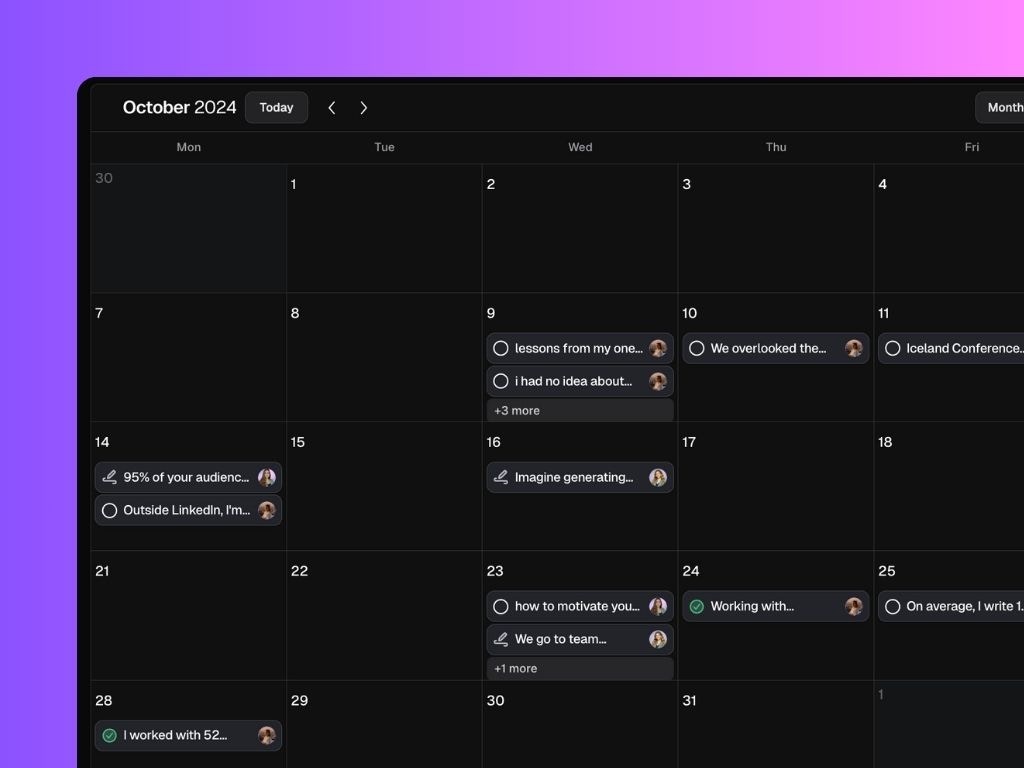
* **See all drafted, scheduled, and published posts** at a glance by personal brand.
* **Switch views** between month and week to better match your planning workflow.
* **Add notes** to any date and assign them to any personal brand: ideal for campaign ideas, content reminders, or creative inputs.
* **Schedule posts** directly from the calendar by selecting a draft and assigning a time slot.
* When scheduling posts, you can filter the drafts by format (e.g., Personal Milestones, Launches) to stay on top of your strategy mix.
For personal planning, head to each individual [personal brand’s calendar](/sidebar/calendar) to manage posts separately.
## What you can do on the Calendar page:
#### 1. See all planned & scheduled posts at a glance
Each post you've planned or scheduled to a specific date appears as a clickable card on your calendar.
From these cards, you can:
* **Open and preview the post**
* **Track its status**
* **Jump straight into editing**
* **Reschedule or unschedule it**
* **Add a Label or Assign it to a Campaign (Business Only)**
Using the "Remove post from calendar" only hides it from view — it doesn’t change its stage. **If the post is scheduled, it will still be published.** To make sure a scheduled post won’t go live, you’ll need to actively unschedule it.
#### 2. Add Notes or Schedule a ready-to-go post
Click `+` in any day of the calendar to add a Note to that day or schedule a post from your pipeline that's ready to be published.
#### 3. Switch between views
Use the **Month/Week toggle** to adjust your view depending on how detailed you want to go. Month view gives you the big picture; week view helps you focus on the immediate next steps.
#### 4. Customize your Scheduling Settings
Click **“Settings”** to:
* Set your **timezone**
* Choose whether your week starts on **Monday or Sunday**
* Define your **posting schedule** (e.g., every Tue/Thu/Fri at 9am). Your preferred posting time will show up as a purple slot in the weekly calendar.
#### 5. Get Post Format suggestions based on your Strategy
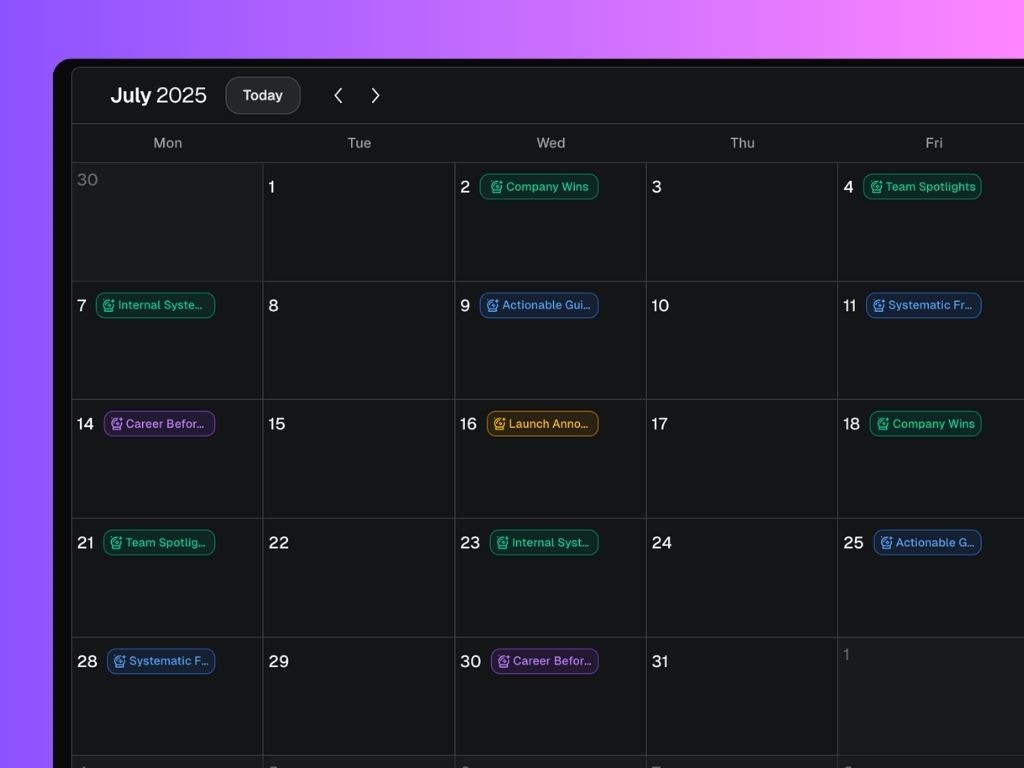
When viewing the calendar for a single Personal Brand, Scripe helps you stay on track with your content goals by displaying **suggested content pillars as color-coded cards**. These are auto-generated based on your [content strategy](/strategy/content-strategy).
Click on a suggestion to instantly open relevant post drafts within that post format, ready for you to schedule or fine-tune.
 ### What you can do:
* **See all drafted, scheduled, and published posts** at a glance by personal brand.
* **Switch views** between month and week to better match your planning workflow.
* **Add notes** to any date and assign them to any personal brand: ideal for campaign ideas, content reminders, or creative inputs.
* **Schedule posts** directly from the calendar by selecting a draft and assigning a time slot.
* When scheduling posts, you can filter the drafts by format (e.g., Personal Milestones, Launches) to stay on top of your strategy mix.
### What you can do:
* **See all drafted, scheduled, and published posts** at a glance by personal brand.
* **Switch views** between month and week to better match your planning workflow.
* **Add notes** to any date and assign them to any personal brand: ideal for campaign ideas, content reminders, or creative inputs.
* **Schedule posts** directly from the calendar by selecting a draft and assigning a time slot.
* When scheduling posts, you can filter the drafts by format (e.g., Personal Milestones, Launches) to stay on top of your strategy mix.