> ## Documentation Index
> Fetch the complete documentation index at: https://docs.scripe.io/llms.txt
> Use this file to discover all available pages before exploring further.
# Understand Your Workspace
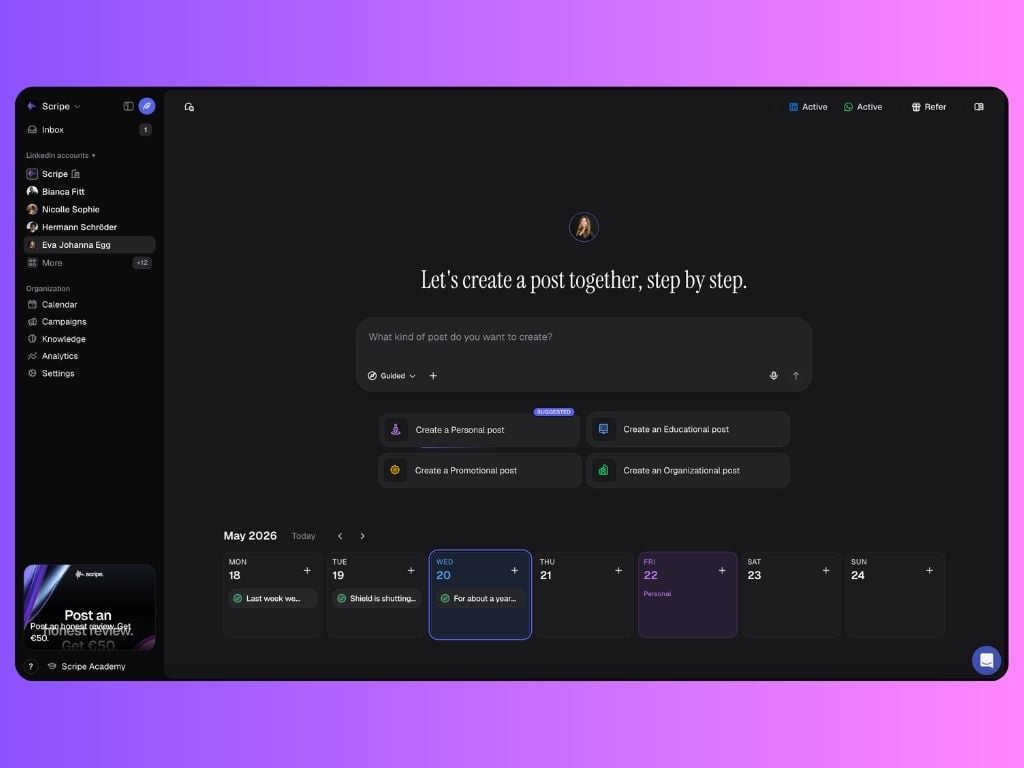
A **Workspace** is your shared environment in Scripe, where you can collaborate with others to manage multiple personal brands (LinkedIn accounts), coordinate content, and streamline LinkedIn activity across your organization.
If you're on the **Solo Plan**, you'll only see one Personal Brand in your Workspace.
 ## What is a Workspace?
This is where all admin settings, shared resources, analytics, and team coordination live.
Each workspace:
* Can host **one personal brand** on the Solo Plan and **unlimited personal brands** (aka LinkedIn accounts connected) on the Advanced and Business Plans.
* Can have **one user** on the Solo Plan and **unlimited users** helping manage these accounts on the Advanced and Business Plans.
**You don't pay per user.** That means you can invite collaborators freely without worrying about extra costs.
## What lives inside a Workspace?
Once inside a workspace, you’ll find access to:
* **Inbox:** see all your Scripe notifications organized in one place, from campaign updates to comments and product updates. Notifications are User-Specific & Personal-Brand-Specific. [Learn more →](/sidebar/inbox)
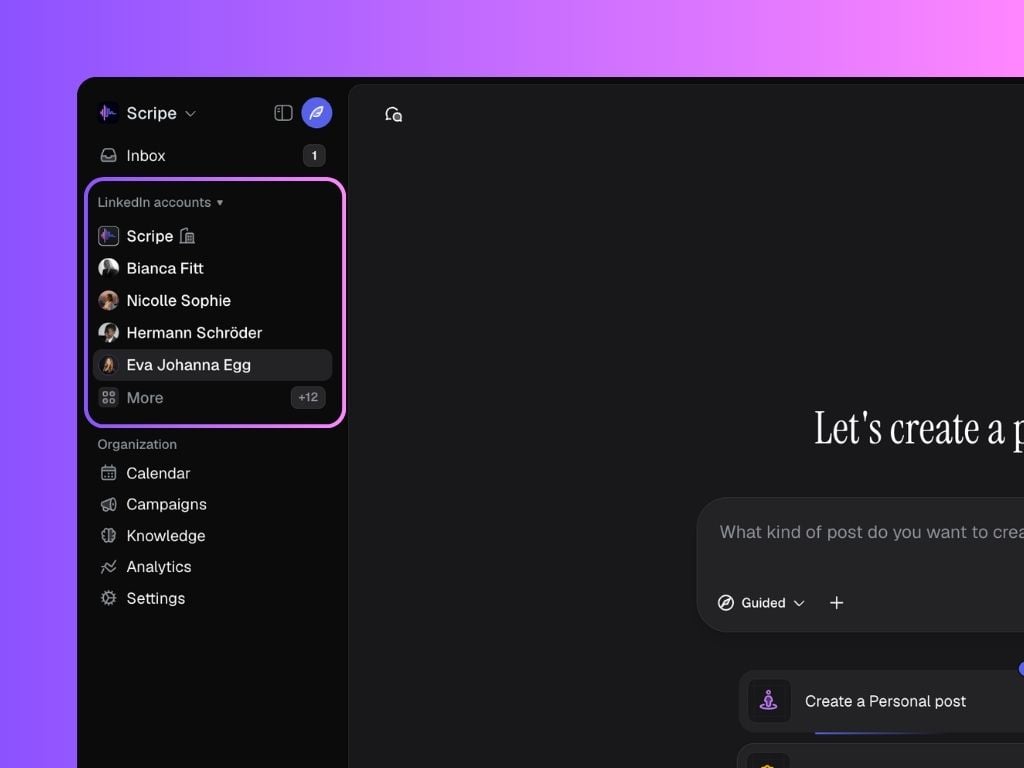
* **LinkedIn Accounts:** All Personal Brands inside your workspace, including Company Pages.
* You can add new Accounts by clicking on `+` next to LinkedIn accounts.
* You can see all the Accounts connected by clicking on `More`.
## What is a Workspace?
This is where all admin settings, shared resources, analytics, and team coordination live.
Each workspace:
* Can host **one personal brand** on the Solo Plan and **unlimited personal brands** (aka LinkedIn accounts connected) on the Advanced and Business Plans.
* Can have **one user** on the Solo Plan and **unlimited users** helping manage these accounts on the Advanced and Business Plans.
**You don't pay per user.** That means you can invite collaborators freely without worrying about extra costs.
## What lives inside a Workspace?
Once inside a workspace, you’ll find access to:
* **Inbox:** see all your Scripe notifications organized in one place, from campaign updates to comments and product updates. Notifications are User-Specific & Personal-Brand-Specific. [Learn more →](/sidebar/inbox)
* **LinkedIn Accounts:** All Personal Brands inside your workspace, including Company Pages.
* You can add new Accounts by clicking on `+` next to LinkedIn accounts.
* You can see all the Accounts connected by clicking on `More`.
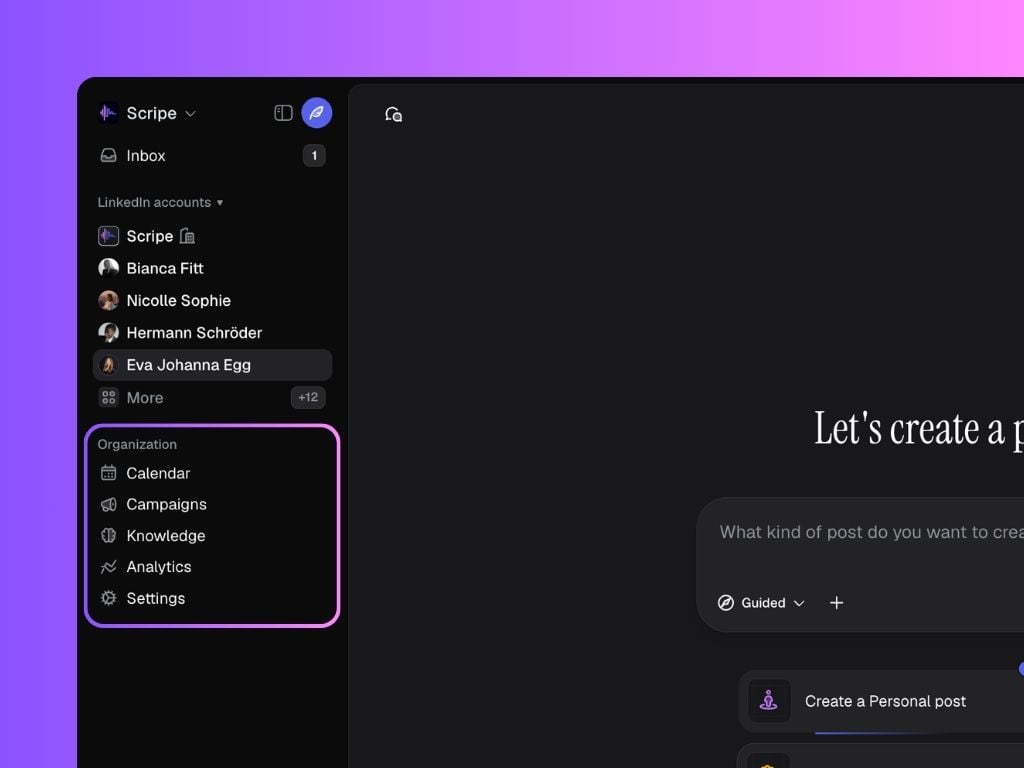
 * [Calendar](/workspace/team-calendar): plan content across multiple brands in one shared view
* [Campaigns](/workspace/campaigns): plan campaigns and track them across all or selected personal brands.
* [Knowledge Base](/workspace/team-knowledge): set writing rules and context for all brands.
* [Analytics](/workspace/team-analytics): track team performance, post results, and top-performing content
* **Settings:** manage [members & roles](/settings/people), [billing](/settings/billing), [post statuses](/settings/post-status), integrations, etc.
* [Calendar](/workspace/team-calendar): plan content across multiple brands in one shared view
* [Campaigns](/workspace/campaigns): plan campaigns and track them across all or selected personal brands.
* [Knowledge Base](/workspace/team-knowledge): set writing rules and context for all brands.
* [Analytics](/workspace/team-analytics): track team performance, post results, and top-performing content
* **Settings:** manage [members & roles](/settings/people), [billing](/settings/billing), [post statuses](/settings/post-status), integrations, etc.
 Everything that powers content creation, including uploading materials, drafting posts, and storing knowledge, lives **inside each** **personal brand**.
## How to Switch Workspaces 🔄
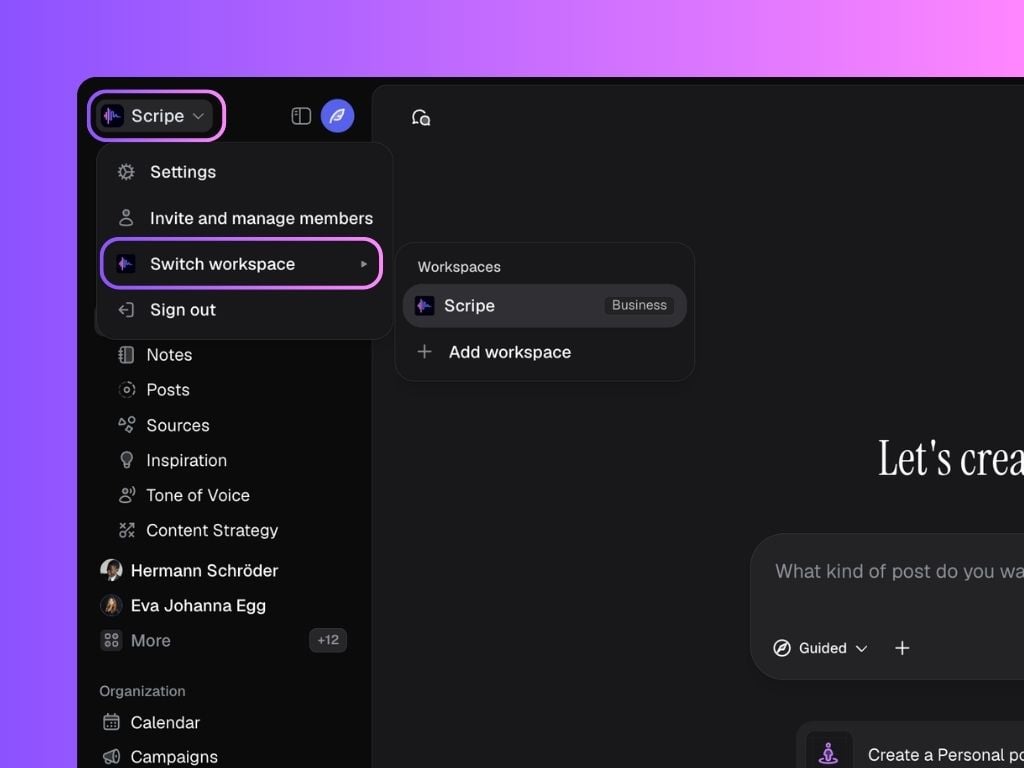
If you're on the Business Plan, you can have unlimited workspaces. To switch between workspaces:
1. Click on your **workspace name** in the top-left corner of Scripe.
2. Select **"Switch workspace."**
3. A menu will appear showing all the workspaces you belong to.
4. Click on the workspace you want to enter or add a new workspace.
Everything that powers content creation, including uploading materials, drafting posts, and storing knowledge, lives **inside each** **personal brand**.
## How to Switch Workspaces 🔄
If you're on the Business Plan, you can have unlimited workspaces. To switch between workspaces:
1. Click on your **workspace name** in the top-left corner of Scripe.
2. Select **"Switch workspace."**
3. A menu will appear showing all the workspaces you belong to.
4. Click on the workspace you want to enter or add a new workspace.