> ## Documentation Index
> Fetch the complete documentation index at: https://docs.scripe.io/llms.txt
> Use this file to discover all available pages before exploring further.
# Campaigns
The Campaigns feature in Scripe helps you plan, organize, and activate company-wide content initiatives — such as launches, events, or marketing pushes — in one shared workspace.
It allows teams to align their content around specific moments and track participation across every brand or personal account in your workspace.
This feature is only available on the Business Plan.
**Campaigns are perfect for:**
* Launches or announcements (e.g., *Scripe 2.0 Launch*)
* Events and webinars (e.g., *Live Webinar*, *IRL Event*)
* Product updates or partnerships
* Community or seasonal challenges
## Creating a Campaign in Scripe
To view and manage campaigns, click on **Campaigns** on your dashboard's sidebar. From this page, you’ll see an overview of all campaigns.
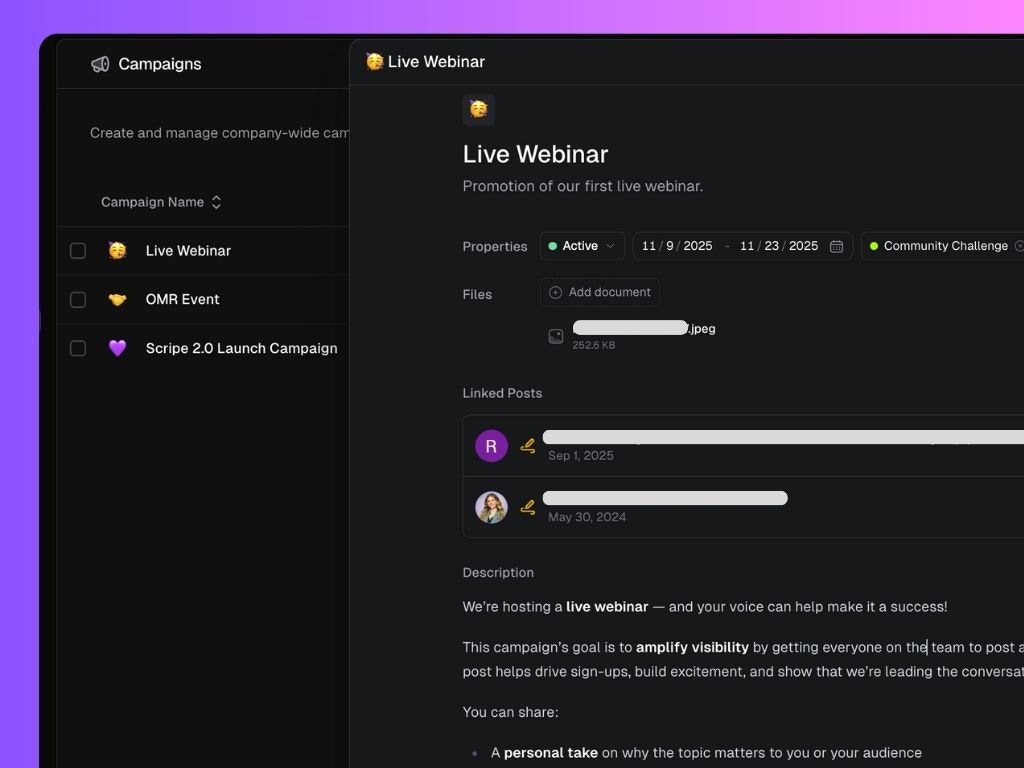 **To create a new campaign in Scripe:**
1. Click **New Campaign**.
2. Add your campaign **name** and **summary**.
3. Select an **emoji** for your campaign.
4. Choose whether to run the campaign **across the entire company** or **only for selected Personal Brands**.
5. Set a **date range** to define the campaign period.
6. Upload any **supporting files** (e.g., visuals or templates).
7. Add a **description** or briefing for your team.
8. Add **labels** (optional) to organize your campaigns by theme (e.g., *Community Challenge*, *Product Launch*).
9. Click **Create**.
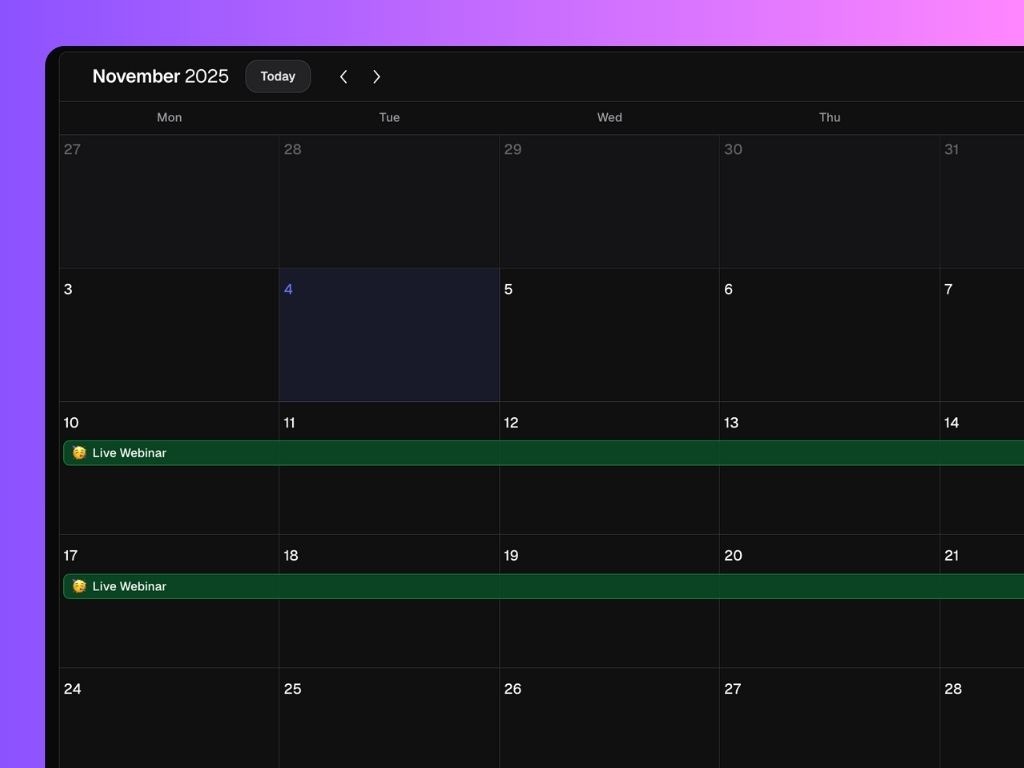
Your campaign will now appear in both the **Campaigns list** and the **Calendar view** for all Personal Brands in your workspace.
**To create a new campaign in Scripe:**
1. Click **New Campaign**.
2. Add your campaign **name** and **summary**.
3. Select an **emoji** for your campaign.
4. Choose whether to run the campaign **across the entire company** or **only for selected Personal Brands**.
5. Set a **date range** to define the campaign period.
6. Upload any **supporting files** (e.g., visuals or templates).
7. Add a **description** or briefing for your team.
8. Add **labels** (optional) to organize your campaigns by theme (e.g., *Community Challenge*, *Product Launch*).
9. Click **Create**.
Your campaign will now appear in both the **Campaigns list** and the **Calendar view** for all Personal Brands in your workspace.
 ## Linking Posts to a Campaign
When creating, editing, or managing your posts, you can link them to a campaign directly.
This allows your team to track all related content and performance in one place. Linked posts appear inside the campaign view under **Linked Posts**.
## Linking Posts to a Campaign
When creating, editing, or managing your posts, you can link them to a campaign directly.
This allows your team to track all related content and performance in one place. Linked posts appear inside the campaign view under **Linked Posts**.
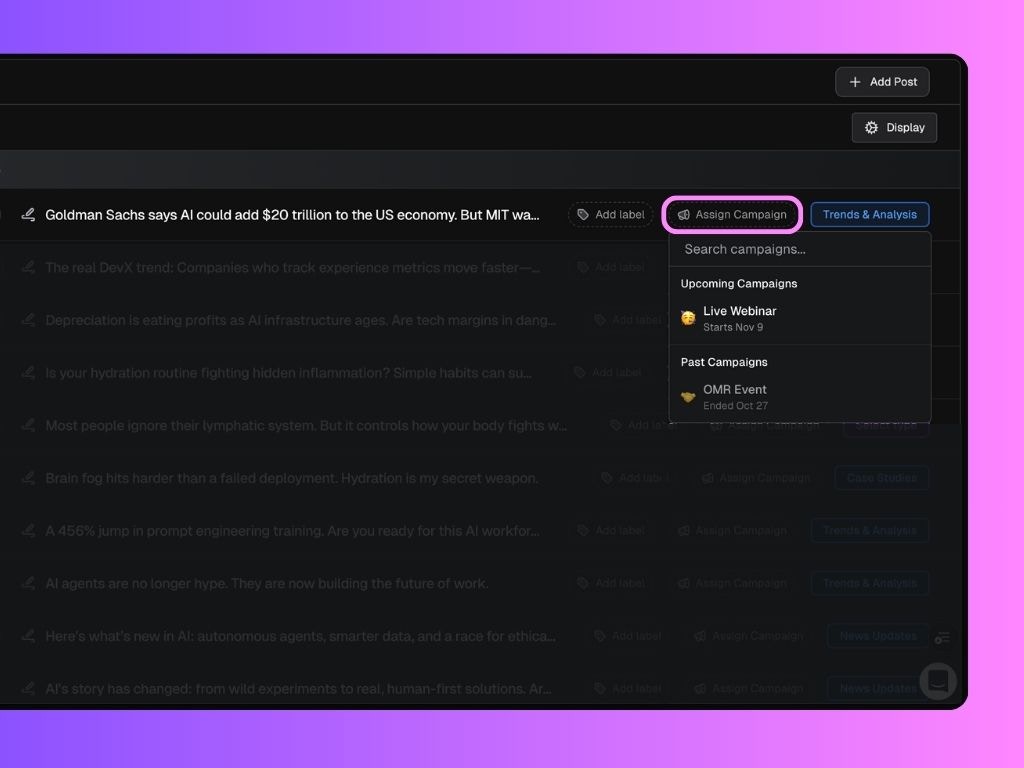 This helps identify which team members are contributing to the campaign and what content is already live.
## Collaborating on Campaigns
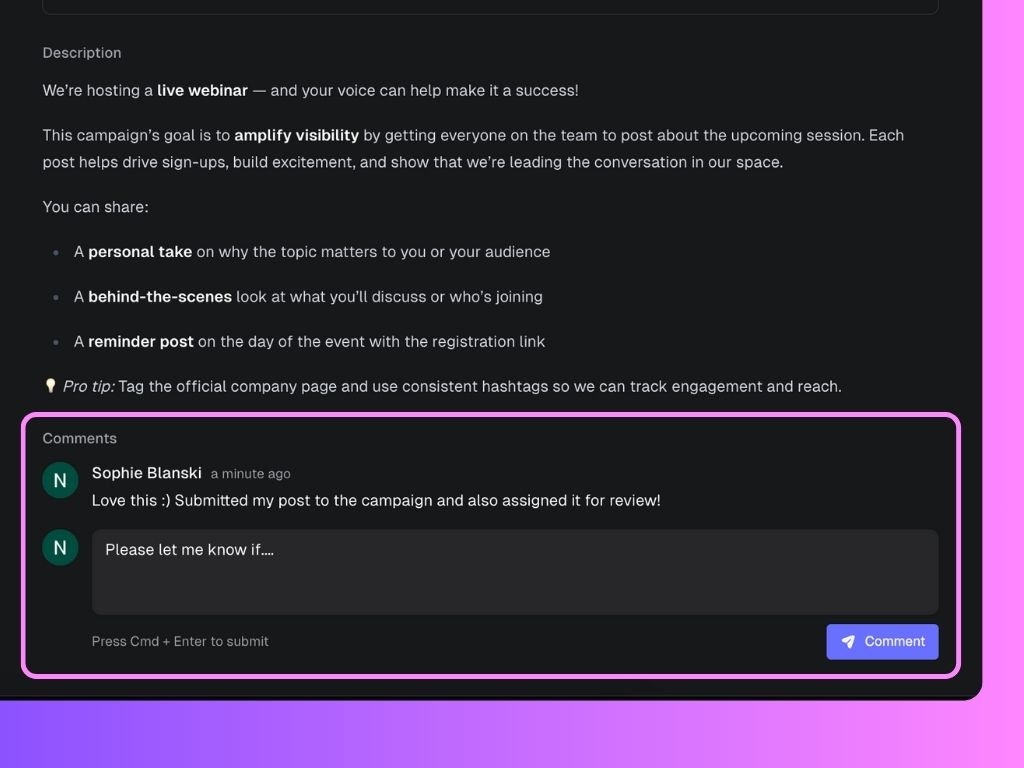
Each campaign has its own comment section where teammates can share ideas, feedback, or confirm that their post has been submitted.
You can also tag teammates or use comments to coordinate post schedules or final checks.
This helps identify which team members are contributing to the campaign and what content is already live.
## Collaborating on Campaigns
Each campaign has its own comment section where teammates can share ideas, feedback, or confirm that their post has been submitted.
You can also tag teammates or use comments to coordinate post schedules or final checks.
 ## Measuring Campaign Impact
Once posts are linked, Scripe tracks their performance across key metrics.
You can see aggregated results under [Analytics](/workspace/team-analytics) → Campaign Performance, where each campaign displays its performance growth and average impressions.
## Measuring Campaign Impact
Once posts are linked, Scripe tracks their performance across key metrics.
You can see aggregated results under [Analytics](/workspace/team-analytics) → Campaign Performance, where each campaign displays its performance growth and average impressions.