> ## Documentation Index
> Fetch the complete documentation index at: https://docs.scripe.io/llms.txt
> Use this file to discover all available pages before exploring further.
# Download Scripe
Accessing Scripe on your iPhone or Mac is quick and easy. Follow the steps below to install Scripe as a Progressive Web App (PWA) for a seamless experience.
## Installing Scripe on iPhone
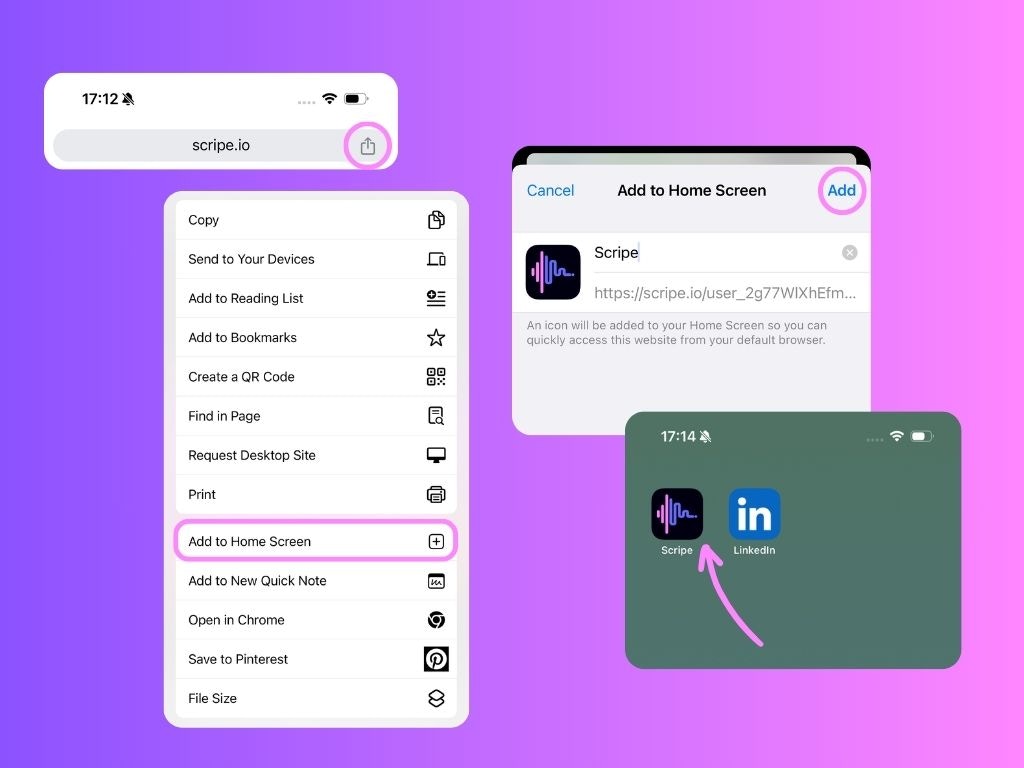
1. Open your mobile browser and navigate to [scripe.io](http://scripe.io).
2. Tap the **Share** icon next to the URL (the square with an arrow pointing upward).
3. Select **Add to Home Screen** from the menu.
4. Tap **Add** in the upper-right corner.
Scripe will now appear on your home screen, allowing you to access it like a native app.
 ## Installing Scripe on Mac Desktop
1. Open [scripe.io](http://scripe.io) in your preferred browser (Safari or Chrome).
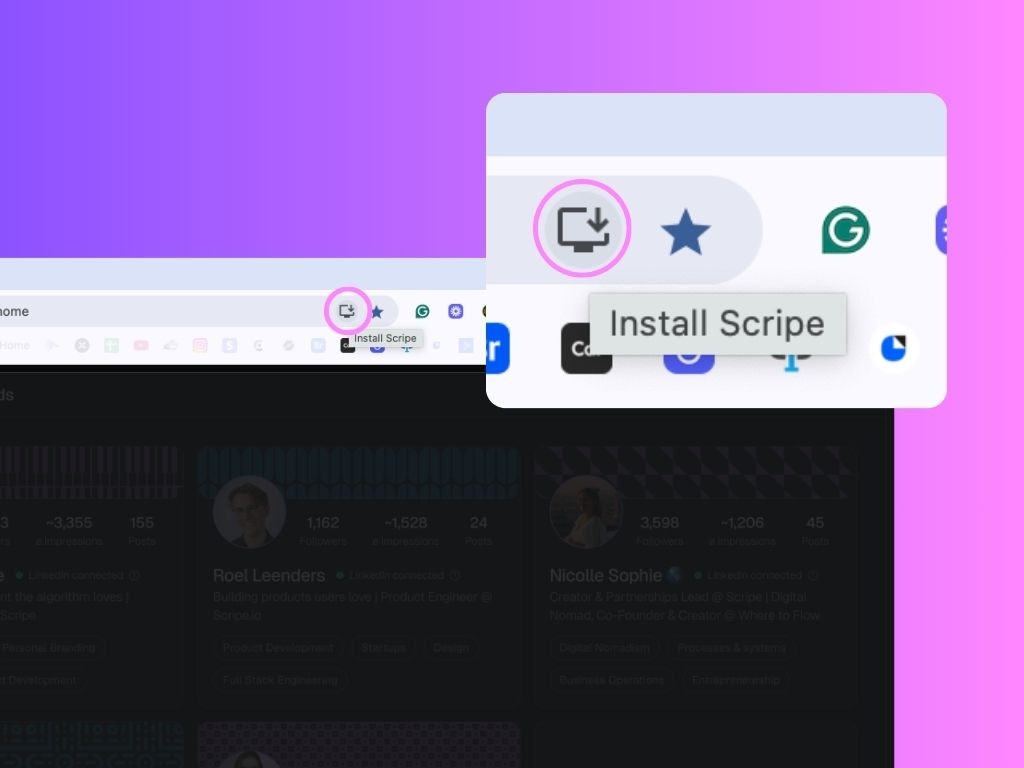
2. In the browser's address bar, look for the **Install** icon (a screen with a downward arrow).
3. Click the **Install** icon and confirm the installation.
Scripe will now be installed as an app on your Mac, accessible directly from your Applications folder or Dock.
## Installing Scripe on Mac Desktop
1. Open [scripe.io](http://scripe.io) in your preferred browser (Safari or Chrome).
2. In the browser's address bar, look for the **Install** icon (a screen with a downward arrow).
3. Click the **Install** icon and confirm the installation.
Scripe will now be installed as an app on your Mac, accessible directly from your Applications folder or Dock.