> ## Documentation Index
> Fetch the complete documentation index at: https://docs.scripe.io/llms.txt
> Use this file to discover all available pages before exploring further.
# Sources
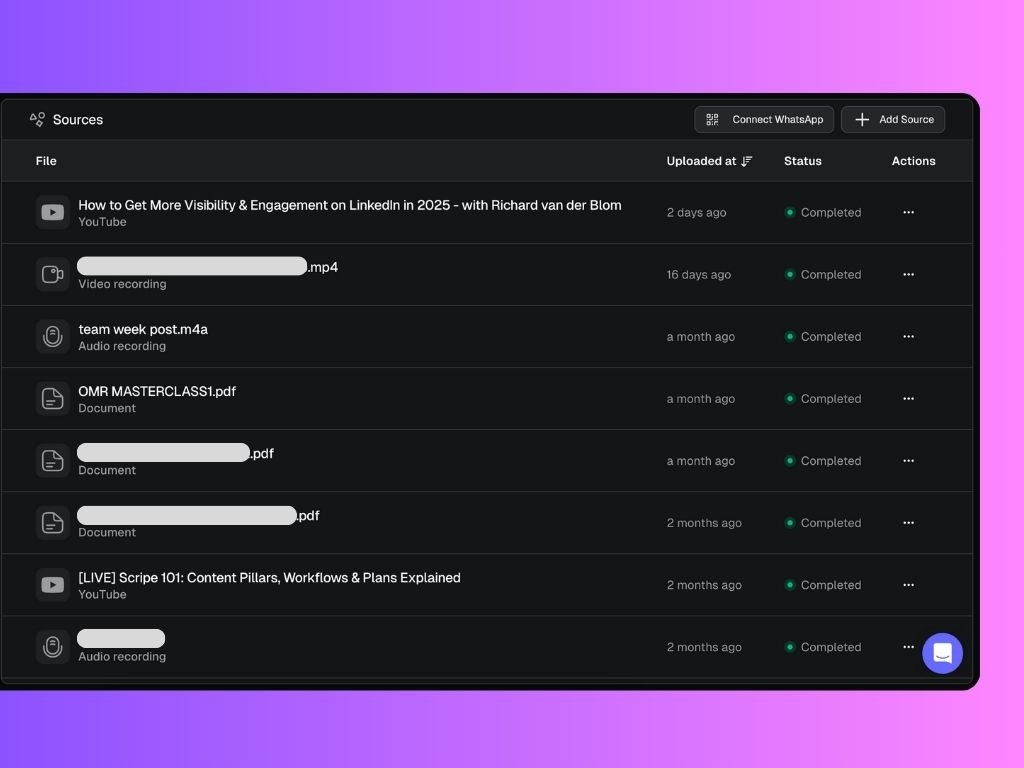
The **Sources** tab is where you upload any long-form content you want Scripe to learn from and transform into LinkedIn-ready posts. This includes interviews, podcasts, webinars, documents, and more.
 ## How to Add a Source
Click the **+ Add Source** button to:
* **Upload a file** (MP3, MP4, DOCX, PDF, Markdown and more with max 2GB)
* **Or paste a YouTube link** to generate content from it.
Tip: Toggle “Add to [Knowledge Base](/sidebar/knowledge)” on if you want the source to train your post suggestions.
## Manage the Source
Clicking on a processed source opens a detailed view where you’ll find two powerful tabs:
### **1. Generated Posts**
Scripe generates multiple post drafts based on the file you uploaded (e.g., audio, video, PDF, etc.).
Each post idea is ranked using a **content score**, which evaluates how well the post aligns with key performance factors such as Goal alignment, Engagement potential and Value and insights.
## How to Add a Source
Click the **+ Add Source** button to:
* **Upload a file** (MP3, MP4, DOCX, PDF, Markdown and more with max 2GB)
* **Or paste a YouTube link** to generate content from it.
Tip: Toggle “Add to [Knowledge Base](/sidebar/knowledge)” on if you want the source to train your post suggestions.
## Manage the Source
Clicking on a processed source opens a detailed view where you’ll find two powerful tabs:
### **1. Generated Posts**
Scripe generates multiple post drafts based on the file you uploaded (e.g., audio, video, PDF, etc.).
Each post idea is ranked using a **content score**, which evaluates how well the post aligns with key performance factors such as Goal alignment, Engagement potential and Value and insights.
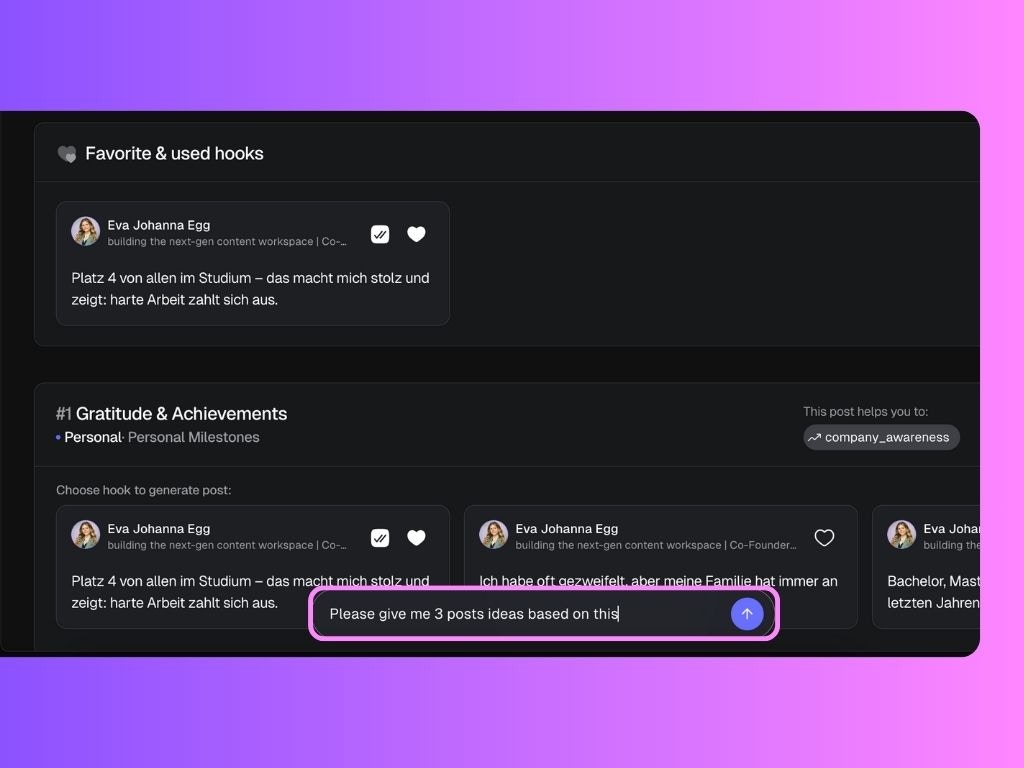 From here you can:
* Preview all the different hook variations
* Favorite the ones you like most
* Use any hook to instantly create a full post
**Pro tip:** Use the bar on the bottom and ask it to give you post ideas based on it. You can use it to prompt or ask anything, for all types of uploaded sources.
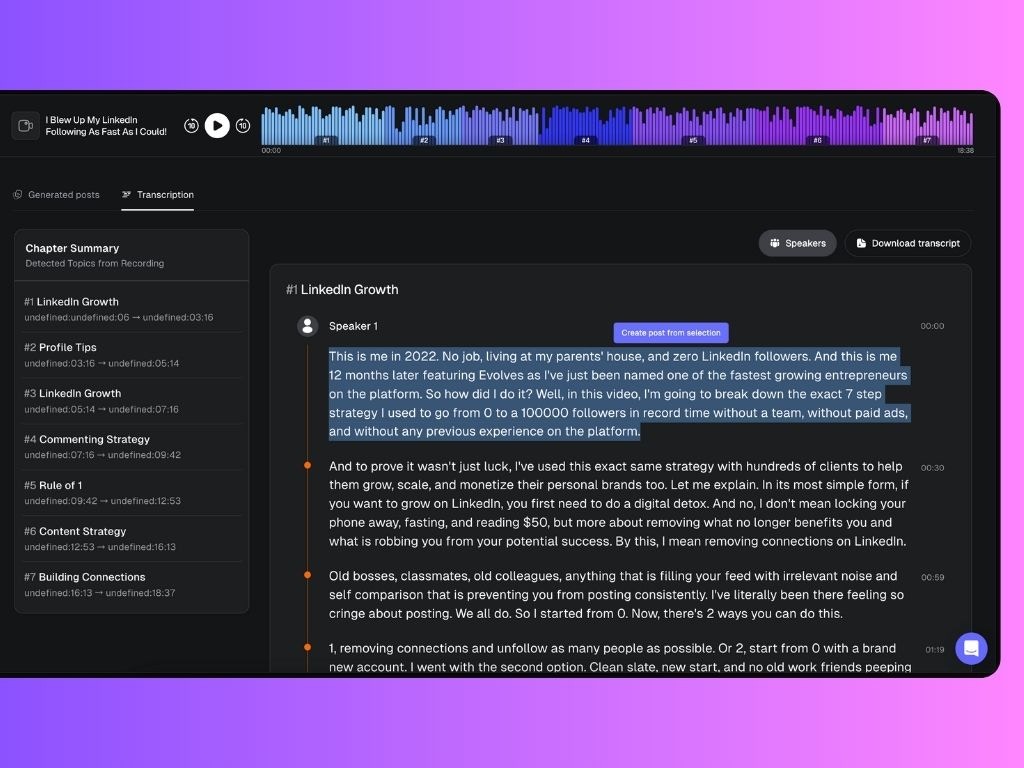
### 2. Transcription
Get a full transcript of your content, broken down into chapters by topic. You can:
* Select a part of the text and click **Create post from selection** to generate a post instantly
* **Download the full transcript** for offline review or documentation
From here you can:
* Preview all the different hook variations
* Favorite the ones you like most
* Use any hook to instantly create a full post
**Pro tip:** Use the bar on the bottom and ask it to give you post ideas based on it. You can use it to prompt or ask anything, for all types of uploaded sources.
### 2. Transcription
Get a full transcript of your content, broken down into chapters by topic. You can:
* Select a part of the text and click **Create post from selection** to generate a post instantly
* **Download the full transcript** for offline review or documentation