> ## Documentation Index
> Fetch the complete documentation index at: https://docs.scripe.io/llms.txt
> Use this file to discover all available pages before exploring further.
# Posts
Manage your entire content pipeline, from ideas to published posts, in one place.
The **Posts page** in your sidebar is where all your content lives: from AI-generated ideas to published LinkedIn posts. It’s designed to help you organize, review, and publish posts faster, without the chaos of external tools or scattered feedback.
## Choose Your View
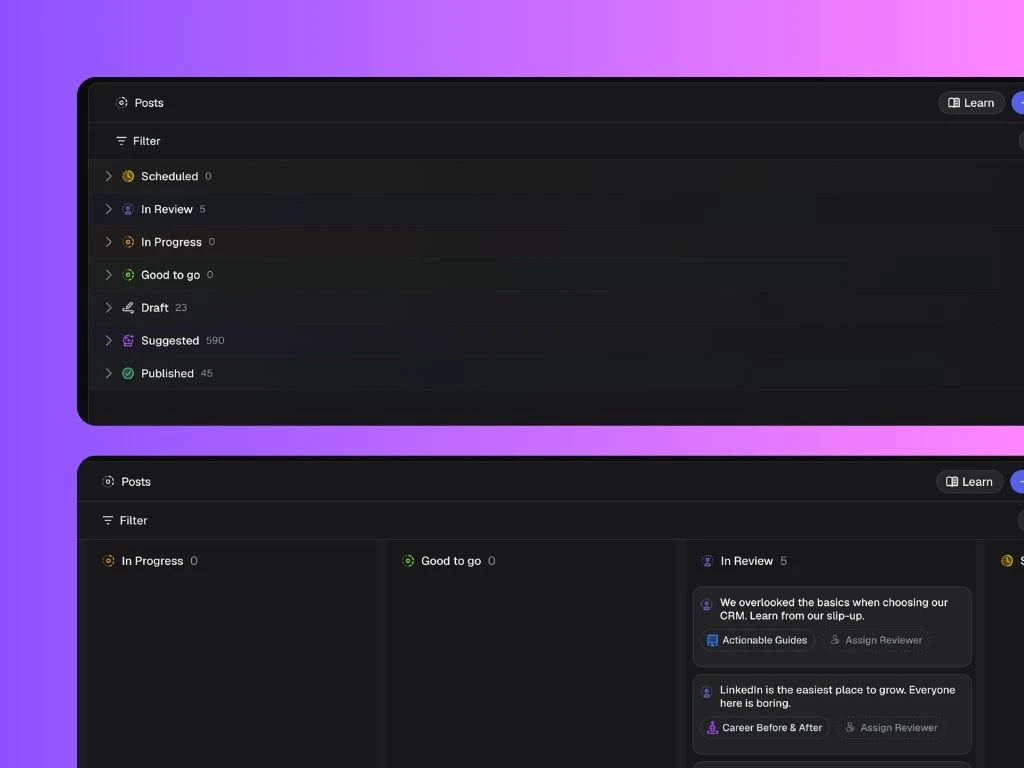
You can now toggle between **List view** and **Board (Kanban) view** — giving you full flexibility over how you organize your content.
* **List view**: See all your posts in a sortable table format.
* **Board view**: Perfect for visual thinkers. Drag and drop posts across columns that represent each status in your workflow (e.g., Draft → In Review → Scheduled).
Your chosen view is remembered automatically, so you can work in your preferred format every time.
 ### Filter and Display Options
You can filter posts in both views by:
* Status
* Labels
* Campaigns
* Content Type
### Filter and Display Options
You can filter posts in both views by:
* Status
* Labels
* Campaigns
* Content Type
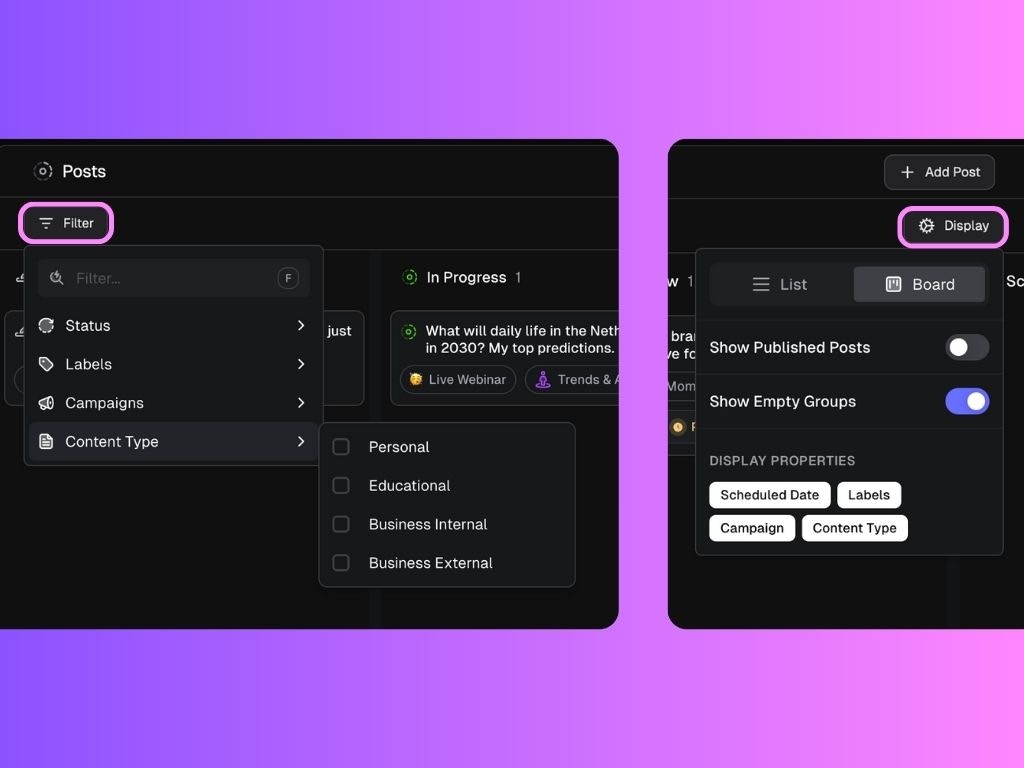 And you can customize what information is visible in your current view by toggling display properties, for example:
* Status
* Scheduled Date
* Labels
* Campaign
* Content Type
* Assigned Reviewer
## Post Statuses
Each post in Scripe moves through a series of **statuses** (like *Draft*, *In Progress*, *In Review*, *Scheduled*, or *Published*).
These statuses are defined at the workspace level, meaning they’re consistent across all personal brands in your workspace. On the Business Plan, you can customize these statuses under [Workspace Settings → Post Status](https://docs.scripe.io/settings/post-status). When you update or delete a status in Workspace Settings, the change automatically applies across all personal brands.
**These are the default post statuses from Scripe:**
This is where you'll find all your AI-generated post ideas. These are personalized based on your tone, audience, and strategy.
This is the default status for all posts generated with Scripe. You can set up as many draft statuses as you want.
You can move posts from Draft to In Progress to clearly separate ideas that are still in the drafting stage from posts that are actively being worked on.
Posts that are assigned to review are automatically moved to this status. You can set up as many review statuses as you want.
Posts that are ready to go and have been scheduled appear here. They’ll be automatically published according to the settings you've chosen.
All posts that have gone live, whether created inside Scripe or not, show up here. This includes historical data imported from LinkedIn.
And you can customize what information is visible in your current view by toggling display properties, for example:
* Status
* Scheduled Date
* Labels
* Campaign
* Content Type
* Assigned Reviewer
## Post Statuses
Each post in Scripe moves through a series of **statuses** (like *Draft*, *In Progress*, *In Review*, *Scheduled*, or *Published*).
These statuses are defined at the workspace level, meaning they’re consistent across all personal brands in your workspace. On the Business Plan, you can customize these statuses under [Workspace Settings → Post Status](https://docs.scripe.io/settings/post-status). When you update or delete a status in Workspace Settings, the change automatically applies across all personal brands.
**These are the default post statuses from Scripe:**
This is where you'll find all your AI-generated post ideas. These are personalized based on your tone, audience, and strategy.
This is the default status for all posts generated with Scripe. You can set up as many draft statuses as you want.
You can move posts from Draft to In Progress to clearly separate ideas that are still in the drafting stage from posts that are actively being worked on.
Posts that are assigned to review are automatically moved to this status. You can set up as many review statuses as you want.
Posts that are ready to go and have been scheduled appear here. They’ll be automatically published according to the settings you've chosen.
All posts that have gone live, whether created inside Scripe or not, show up here. This includes historical data imported from LinkedIn.