> ## Documentation Index
> Fetch the complete documentation index at: https://docs.scripe.io/llms.txt
> Use this file to discover all available pages before exploring further.
# Notes
The Notes feature helps you capture ideas and save content inspiration to turn into LinkedIn posts later. Whether it’s a quick idea, content framework, launch note, or random thought during the day, Notes gives you a dedicated space to collect and structure your future content.
## How to use Notes
You can create a new note anytime by clicking the **pencil icon** inside the Notes page. Each note includes a title and a rich text editor.
Notes are automatically saved as you work on them.
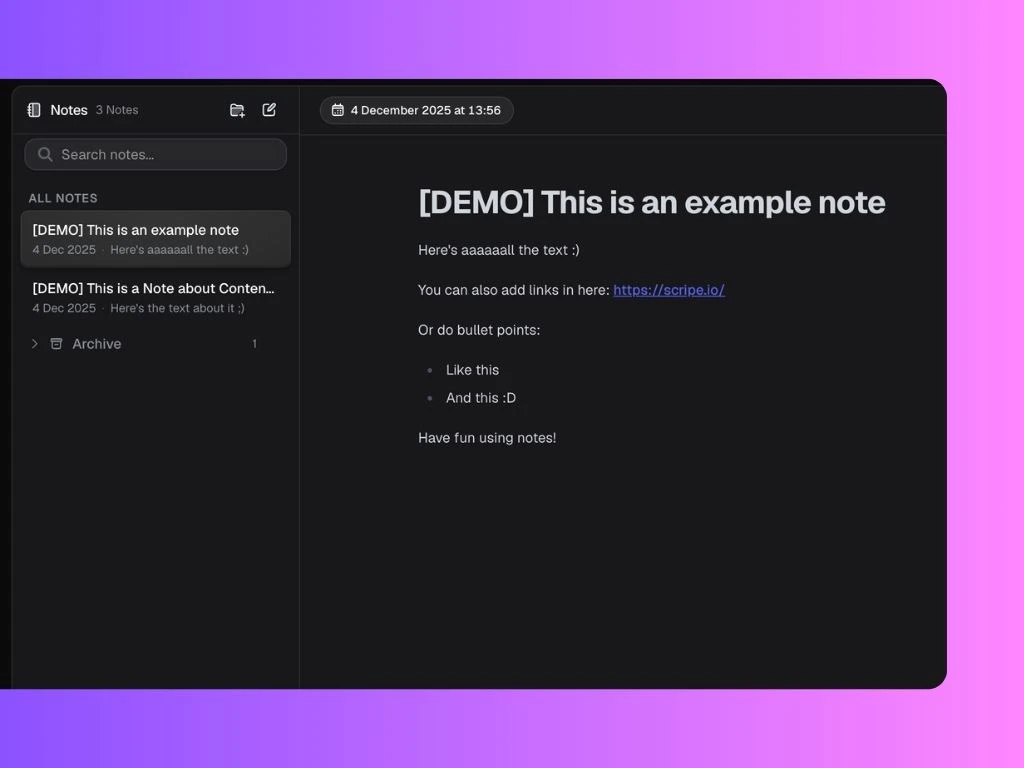 Once your note is ready, click **Turn into Post** in the top-right corner.
Scripe will use your note as source material to help generate LinkedIn content based on your ideas, structure, and writing style.
### Organize Notes with Folders
You can organize your notes into folders to keep your workspace clean and easier to navigate.
To create a folder:
1. Click the **New Folder** icon
2. Enter a folder name
3. Choose an icon or emoji
4. Click **New Folder**
Folders are helpful for grouping notes by:
* Content pillars
* Clients
* Campaigns
* Topics
* Personal ideas
* Draft stages
Use the search bar at the top of the Notes sidebar to quickly find notes by keyword, topic, or title. This makes it easy to revisit old ideas and reuse past content inspiration.
Once your note is ready, click **Turn into Post** in the top-right corner.
Scripe will use your note as source material to help generate LinkedIn content based on your ideas, structure, and writing style.
### Organize Notes with Folders
You can organize your notes into folders to keep your workspace clean and easier to navigate.
To create a folder:
1. Click the **New Folder** icon
2. Enter a folder name
3. Choose an icon or emoji
4. Click **New Folder**
Folders are helpful for grouping notes by:
* Content pillars
* Clients
* Campaigns
* Topics
* Personal ideas
* Draft stages
Use the search bar at the top of the Notes sidebar to quickly find notes by keyword, topic, or title. This makes it easy to revisit old ideas and reuse past content inspiration.