> ## Documentation Index
> Fetch the complete documentation index at: https://docs.scripe.io/llms.txt
> Use this file to discover all available pages before exploring further.
# Personal Brand Dashboard
The **Personal Brand Dashboard** is your hub for content creation and where Scripe learns from your content.
 ## What You’ll Find on the Dashboard
### 1. Your Chat
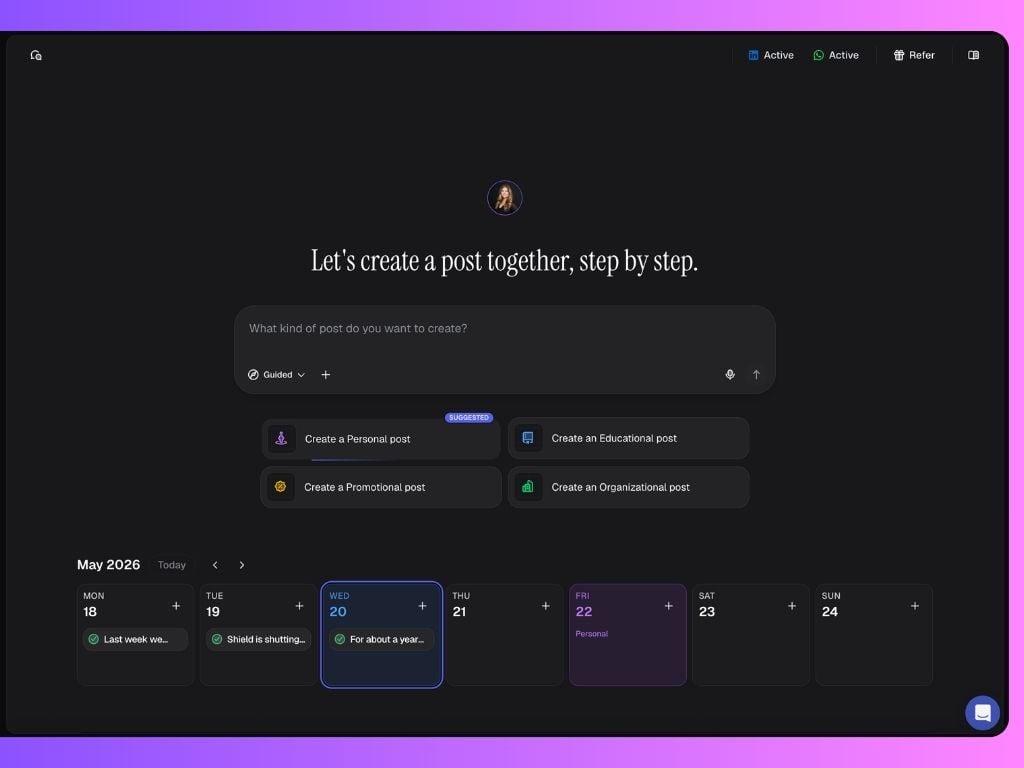
The Chat is your creative assistant for generating, refining, and organizing LinkedIn content ideas — all in one place. It guides you through content creation and helps you brainstorm post ideas, generate hooks, and turn your thoughts into LinkedIn posts.
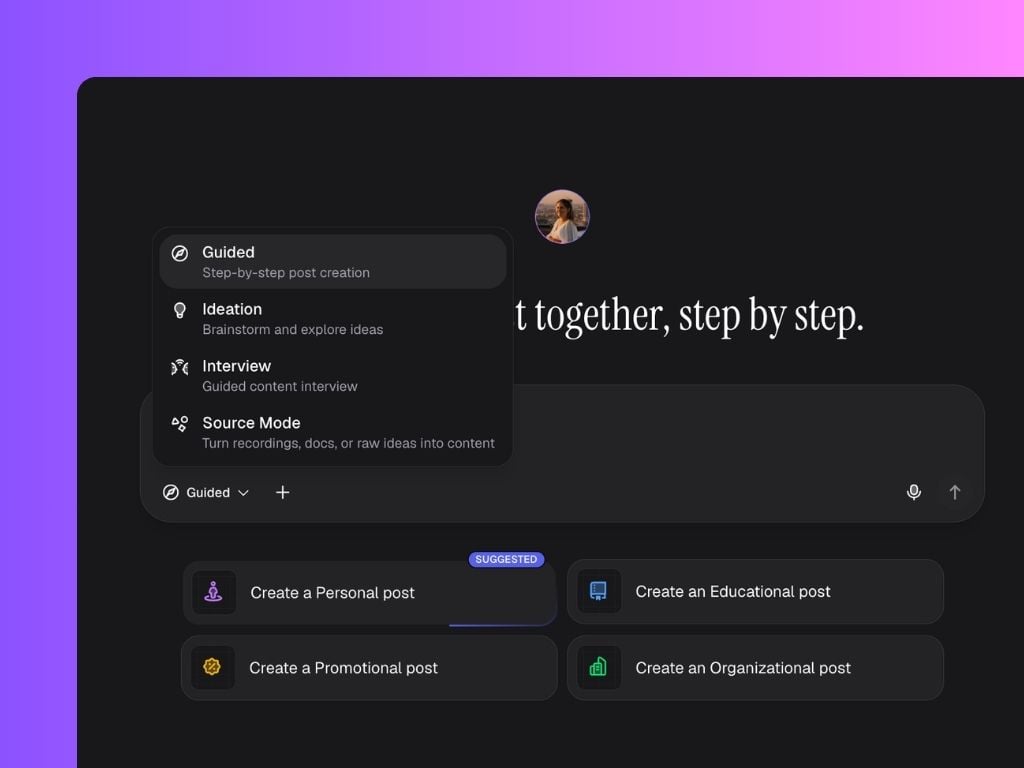
**The Chat has 4 different modes:**
* Guided: for a step-by-step post creation experience
* Ideation: to brainstorm and explore ideas
* Interview: a guided content interview where you answer questions in audio format
* Source Mode: to upload files such as recordings or YouTube links and turn them into content
## What You’ll Find on the Dashboard
### 1. Your Chat
The Chat is your creative assistant for generating, refining, and organizing LinkedIn content ideas — all in one place. It guides you through content creation and helps you brainstorm post ideas, generate hooks, and turn your thoughts into LinkedIn posts.
**The Chat has 4 different modes:**
* Guided: for a step-by-step post creation experience
* Ideation: to brainstorm and explore ideas
* Interview: a guided content interview where you answer questions in audio format
* Source Mode: to upload files such as recordings or YouTube links and turn them into content
 ### 2. Weekly Calendar
Below the chat, you’ll find a weekly calendar view designed to help you stay consistent with your [Content Strategy](/strategy/content-strategy). Scripe recommends which content pillar you should focus on next, helping you create a more balanced and strategic posting cadence instead of guessing what to post each day.
This calendar view also gives you a clear overview of your upcoming and scheduled content at a glance.
### 3. Weekly Personalized Suggestions
Every week, Scripe generates new post ideas tailored to your LinkedIn audience and your recent activity. These show up under [Weekly personalized post ideas](/post/ai-powered), and they’re linked directly to your [content strategy](/content-strategy/content-strategy).
Clicking any of these suggestions will open your post drafts that are within the topic, ready to be published, so you can schedule or tweak them right away.
### 2. Weekly Calendar
Below the chat, you’ll find a weekly calendar view designed to help you stay consistent with your [Content Strategy](/strategy/content-strategy). Scripe recommends which content pillar you should focus on next, helping you create a more balanced and strategic posting cadence instead of guessing what to post each day.
This calendar view also gives you a clear overview of your upcoming and scheduled content at a glance.
### 3. Weekly Personalized Suggestions
Every week, Scripe generates new post ideas tailored to your LinkedIn audience and your recent activity. These show up under [Weekly personalized post ideas](/post/ai-powered), and they’re linked directly to your [content strategy](/content-strategy/content-strategy).
Clicking any of these suggestions will open your post drafts that are within the topic, ready to be published, so you can schedule or tweak them right away.
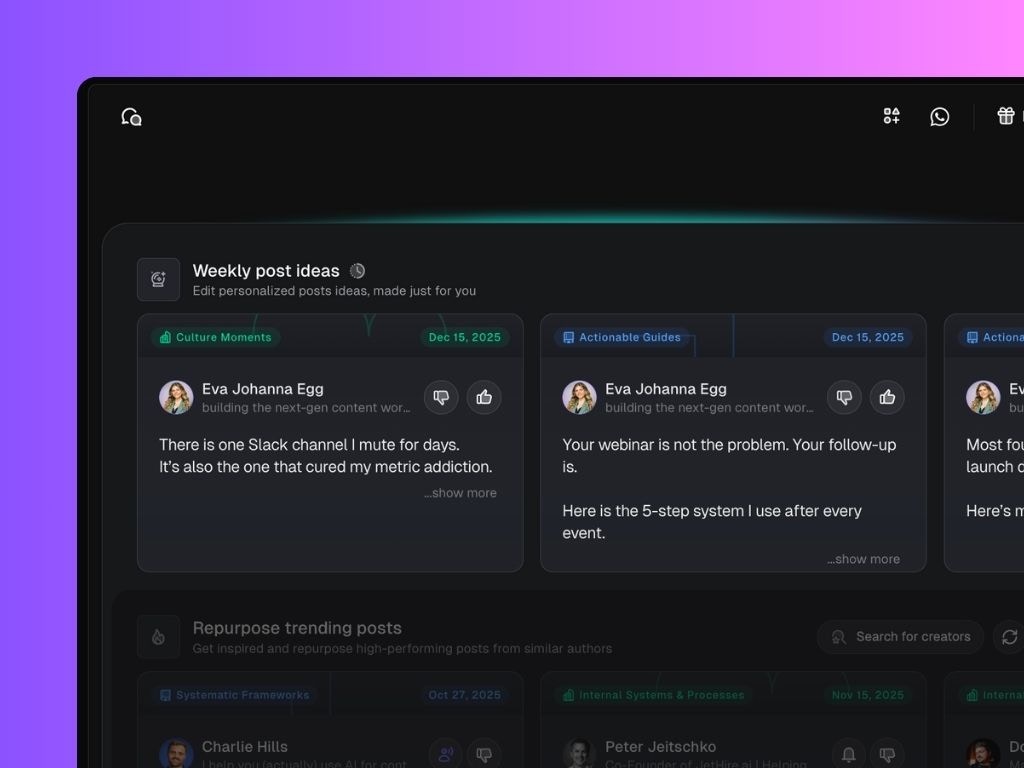 When you hover over a weekly suggestion, you’ll see two actions:
* **Edit post**: Opens the post editor so you can work on the LinkedIn draft.
* **Add to chat**: Sends the post idea into Chat, where you can brainstorm, refine, expand, or re-angle it.
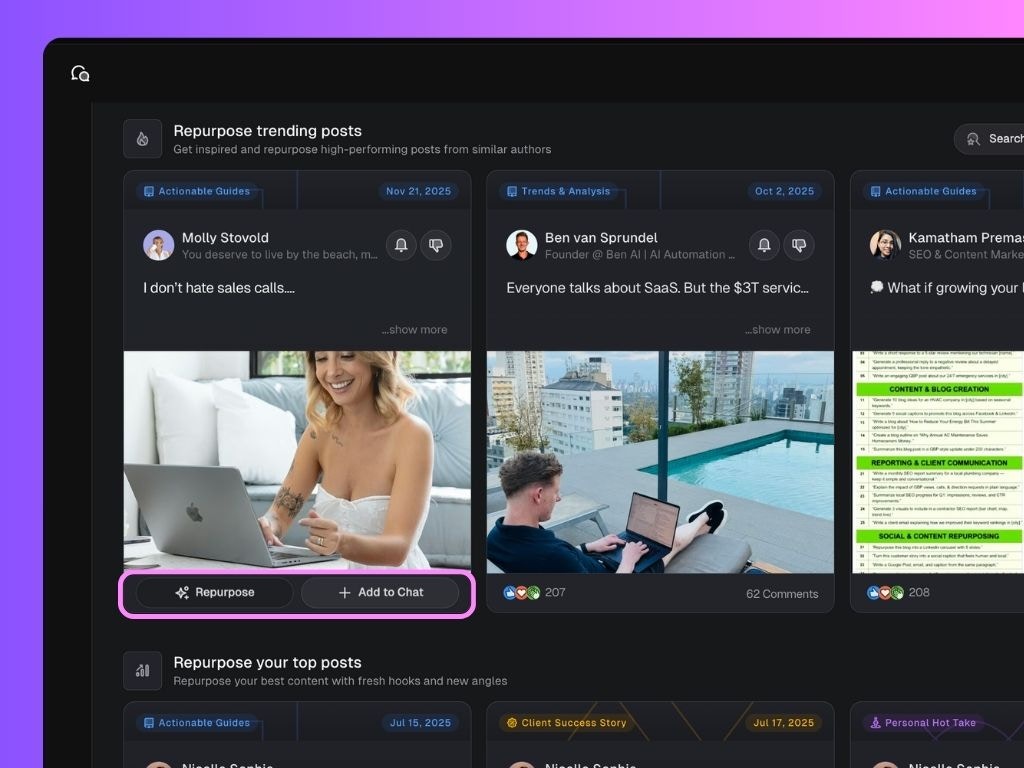
### 4. Repurpose Sections:
When hovering over one of these posts, you’ll see two actions:
* **Repurpose post**: Scripe rewrites the post in your tone and context.
* **Add to chat**: Allows you to brainstorm variations, add more context, ask Scripe to explain why the post performed well, or generate multiple new angles.
When you hover over a weekly suggestion, you’ll see two actions:
* **Edit post**: Opens the post editor so you can work on the LinkedIn draft.
* **Add to chat**: Sends the post idea into Chat, where you can brainstorm, refine, expand, or re-angle it.
### 4. Repurpose Sections:
When hovering over one of these posts, you’ll see two actions:
* **Repurpose post**: Scripe rewrites the post in your tone and context.
* **Add to chat**: Allows you to brainstorm variations, add more context, ask Scripe to explain why the post performed well, or generate multiple new angles.