> ## Documentation Index
> Fetch the complete documentation index at: https://docs.scripe.io/llms.txt
> Use this file to discover all available pages before exploring further.
# Click Tracking
Create and manage tracked links to measure clicks from your content.
This feature is only available on the Business Plan.
With Click Tracking, you can create tracked links that show:
* How many people clicked your links
* Which LinkedIn profile or post generated the clicks
* Which placements perform best
* Where your audience is located geographically
You can use tracked links across:
* LinkedIn profiles
* LinkedIn posts
* Auto-engagement comments
* Feature sections
* Company pages
* Any external placement you want to track
## How Click Tracking Works
When you create a tracked link inside Scripe, the platform generates a unique redirect URL.
When someone clicks that URL:
1. Scripe records the click
2. The user is redirected instantly to your final destination URL
3. Analytics are updated inside your Click Tracking dashboard
This allows you to measure real engagement and understand which content actually drives traffic.
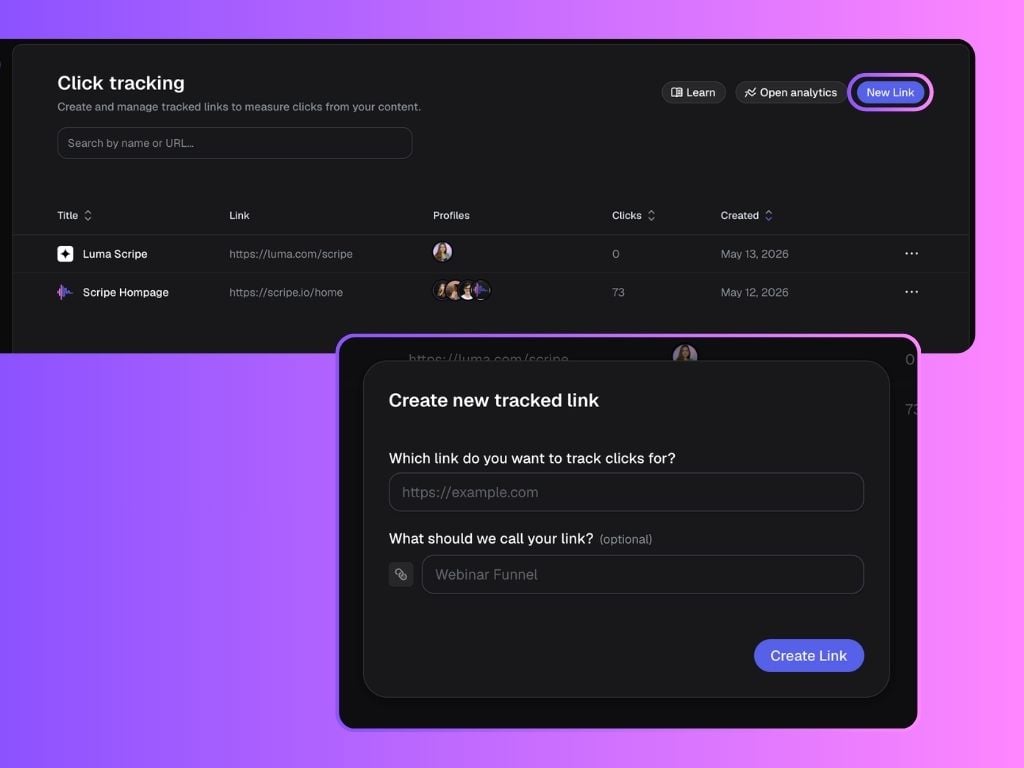
## How to Create a Tracked Link
To create a tracked link:
1. Open **Settings → Click Tracking**
2. Click **Create Link**
3. Paste your destination URL
4. Save the link
Once created, you can:
* Create placements
* Assign links to profiles
* Use links inside posts or comments
* Track performance in analytics
## Understanding Placements
Placements help organize where your tracked links are being used.
Scripe currently supports:
### Profile placements
You can use tracked links directly on your LinkedIn profile to measure profile-driven traffic.
**How to Set It Up:**
1. Select your tracked link
2. Add a **Profile Placement**
3. Select the LinkedIn profiles you want to use the link on
4. Copy the generated tracking link
5. Open LinkedIn and paste the link into your profile:
* Open LinkedIn and go to your profile.
* Click on **Edit Profile**.
* Scroll down to the Website section.
* Paste your Scripe-generated link into the **Link field.**
* Add a custom name under Link Text — for example: Try Scripe for Free!
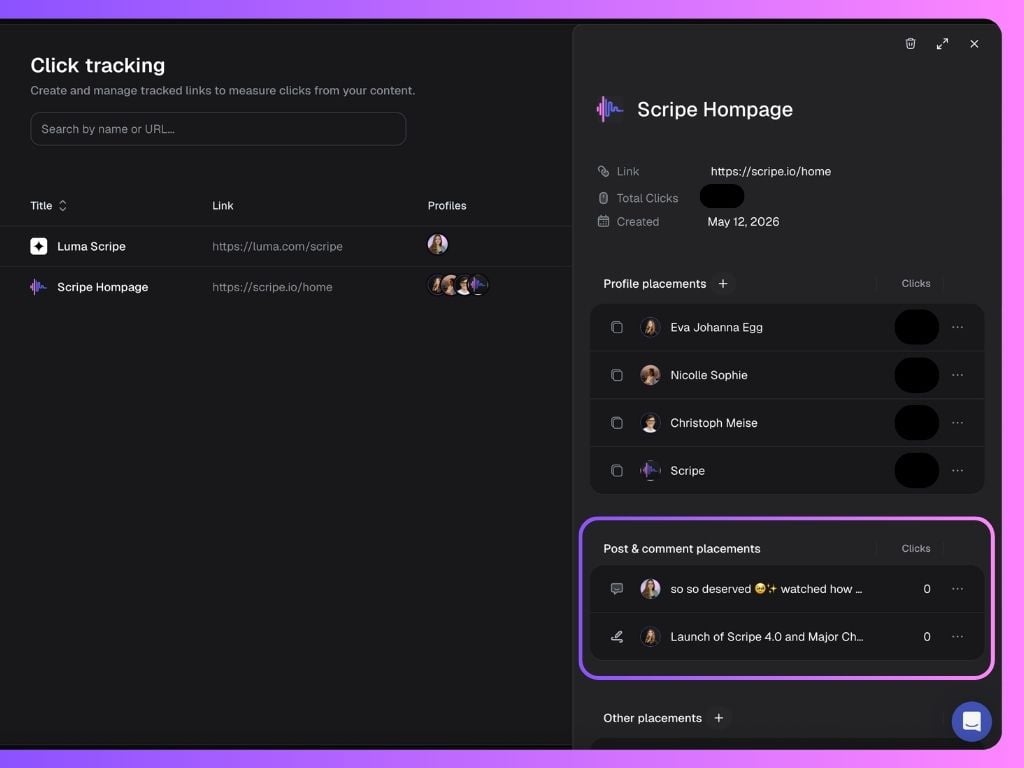
### Post & Comment placements
You can also add tracked links directly into your LinkedIn posts or comments inside the auto-engagement feature.
**How to Set It Up:**
1. Paste your destination link in the post editor or comments
2. Enable **Link Tracking**
3. Scripe automatically converts the link into a tracked URL
The post will then appear automatically inside your Click Tracking analytics.
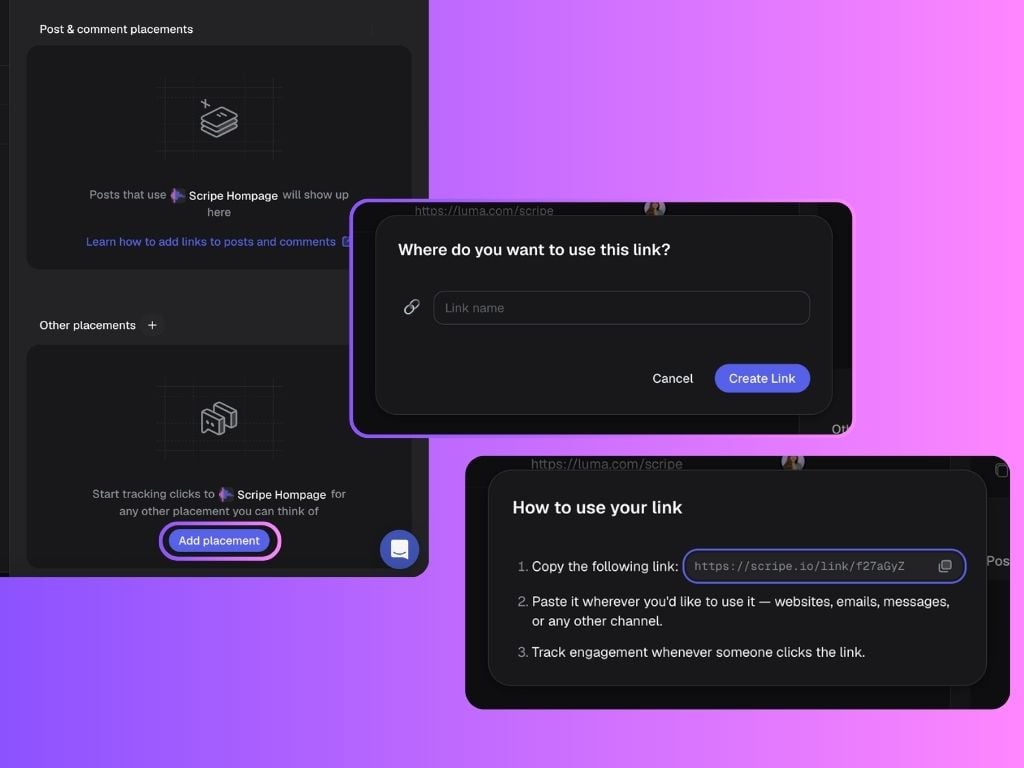
### Other placements
You can also create standalone tracked links for any use case outside of profiles or posts.
Examples:
* Webinars
* Landing pages
* Partner campaigns
* External social platforms
* Email campaigns
You can:
* Add a custom name
* Choose an emoji
* Copy and use the link anywhere
## Why Click Tracking Matters
Click Tracking helps turn LinkedIn into a measurable growth channel. Instead of relying only on impressions or engagement, you can understand:
* What content actually drives traffic
* Which profiles convert best
* How LinkedIn contributes to pipeline and revenue
This makes it easier to optimize your content strategy using real performance data instead of guesswork.
 Once created, you can:
* Create placements
* Assign links to profiles
* Use links inside posts or comments
* Track performance in analytics
## Understanding Placements
Placements help organize where your tracked links are being used.
Scripe currently supports:
### Profile placements
You can use tracked links directly on your LinkedIn profile to measure profile-driven traffic.
**How to Set It Up:**
1. Select your tracked link
2. Add a **Profile Placement**
3. Select the LinkedIn profiles you want to use the link on
4. Copy the generated tracking link
Once created, you can:
* Create placements
* Assign links to profiles
* Use links inside posts or comments
* Track performance in analytics
## Understanding Placements
Placements help organize where your tracked links are being used.
Scripe currently supports:
### Profile placements
You can use tracked links directly on your LinkedIn profile to measure profile-driven traffic.
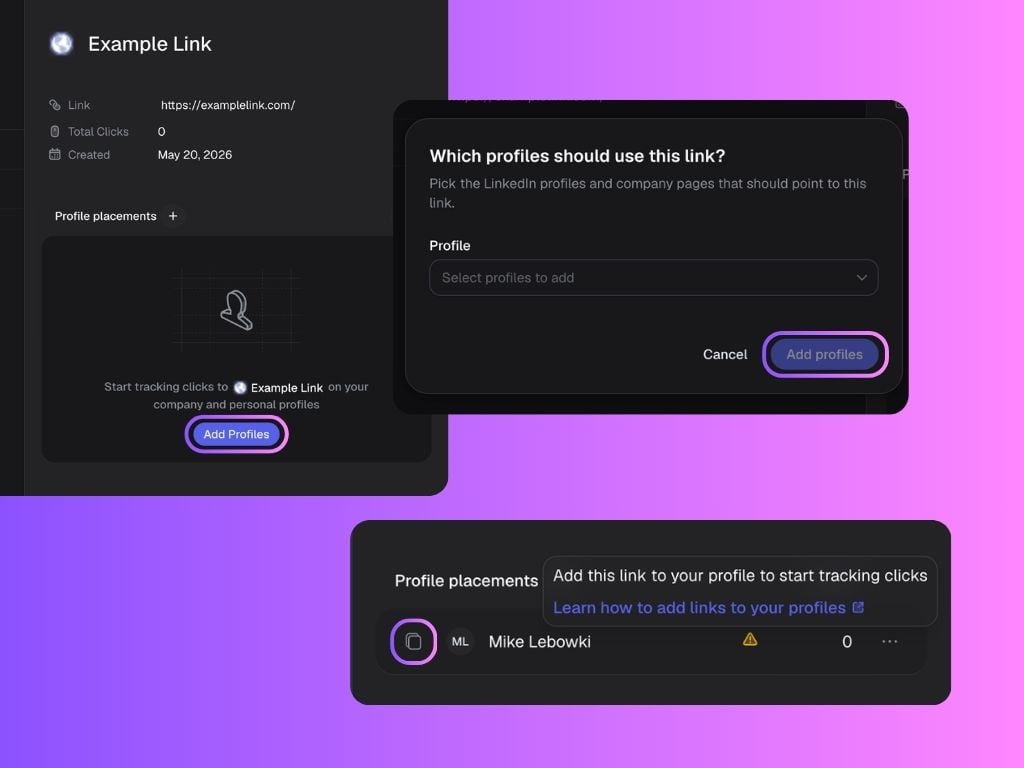
**How to Set It Up:**
1. Select your tracked link
2. Add a **Profile Placement**
3. Select the LinkedIn profiles you want to use the link on
4. Copy the generated tracking link
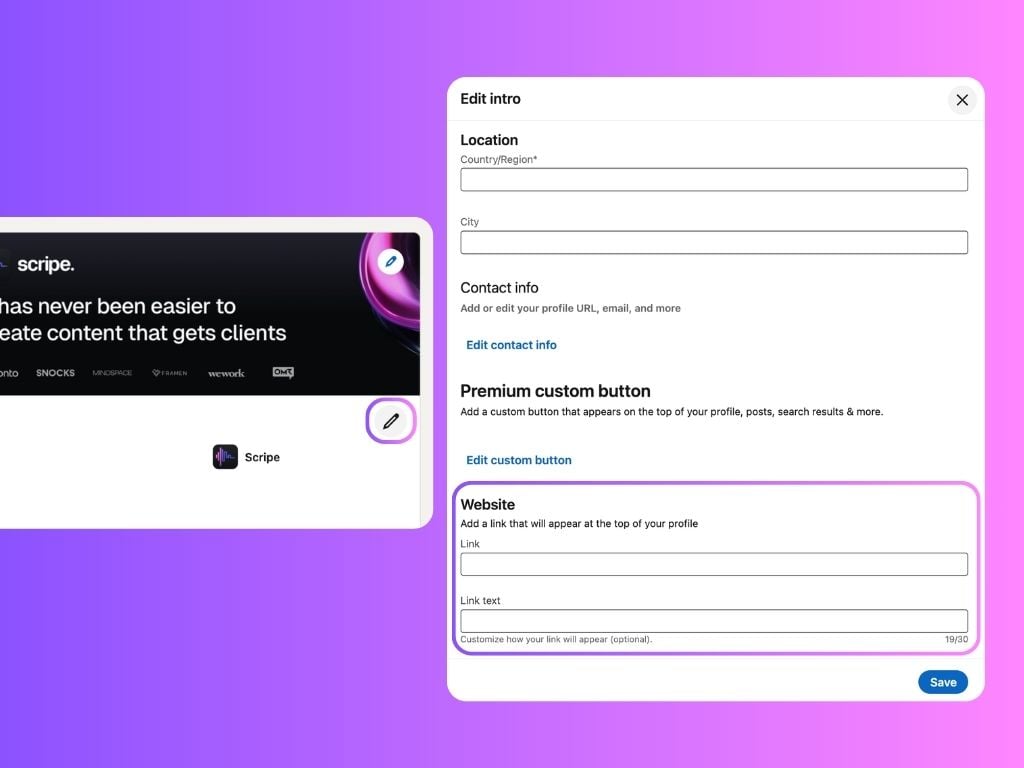
 5. Open LinkedIn and paste the link into your profile:
* Open LinkedIn and go to your profile.
* Click on **Edit Profile**.
* Scroll down to the Website section.
* Paste your Scripe-generated link into the **Link field.**
* Add a custom name under Link Text — for example: Try Scripe for Free!
5. Open LinkedIn and paste the link into your profile:
* Open LinkedIn and go to your profile.
* Click on **Edit Profile**.
* Scroll down to the Website section.
* Paste your Scripe-generated link into the **Link field.**
* Add a custom name under Link Text — for example: Try Scripe for Free!
 ### Post & Comment placements
You can also add tracked links directly into your LinkedIn posts or comments inside the auto-engagement feature.
**How to Set It Up:**
1. Paste your destination link in the post editor or comments
2. Enable **Link Tracking**
3. Scripe automatically converts the link into a tracked URL
### Post & Comment placements
You can also add tracked links directly into your LinkedIn posts or comments inside the auto-engagement feature.
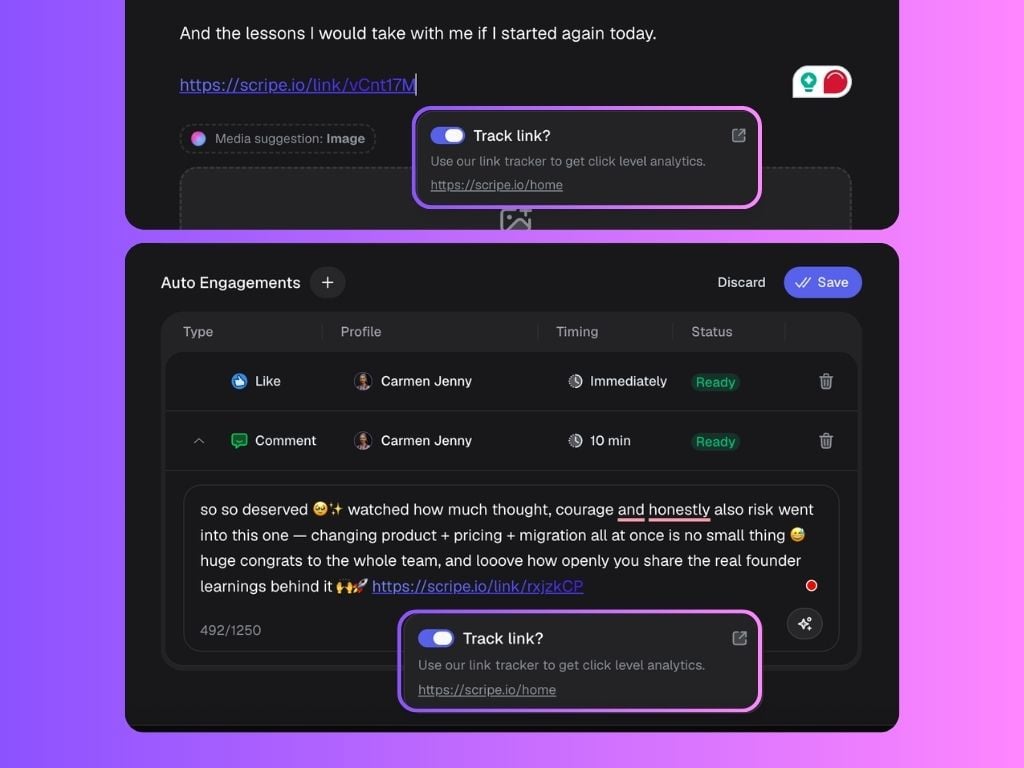
**How to Set It Up:**
1. Paste your destination link in the post editor or comments
2. Enable **Link Tracking**
3. Scripe automatically converts the link into a tracked URL
 The post will then appear automatically inside your Click Tracking analytics.
 ### Other placements
You can also create standalone tracked links for any use case outside of profiles or posts.
Examples:
* Webinars
* Landing pages
* Partner campaigns
* External social platforms
* Email campaigns
You can:
* Add a custom name
* Choose an emoji
* Copy and use the link anywhere
### Other placements
You can also create standalone tracked links for any use case outside of profiles or posts.
Examples:
* Webinars
* Landing pages
* Partner campaigns
* External social platforms
* Email campaigns
You can:
* Add a custom name
* Choose an emoji
* Copy and use the link anywhere
 ## Why Click Tracking Matters
Click Tracking helps turn LinkedIn into a measurable growth channel. Instead of relying only on impressions or engagement, you can understand:
* What content actually drives traffic
* Which profiles convert best
* How LinkedIn contributes to pipeline and revenue
This makes it easier to optimize your content strategy using real performance data instead of guesswork.
## Why Click Tracking Matters
Click Tracking helps turn LinkedIn into a measurable growth channel. Instead of relying only on impressions or engagement, you can understand:
* What content actually drives traffic
* Which profiles convert best
* How LinkedIn contributes to pipeline and revenue
This makes it easier to optimize your content strategy using real performance data instead of guesswork.