> ## Documentation Index
> Fetch the complete documentation index at: https://docs.scripe.io/llms.txt
> Use this file to discover all available pages before exploring further.
# WhatsApp
With our WhatsApp integration, you can easily upload voice or text memos directly into Scripe, making it even faster to capture ideas and turn them into content.
This guide walks you through setup and usage.
## Step 1: Connect Your WhatsApp
### Via Dashboard:
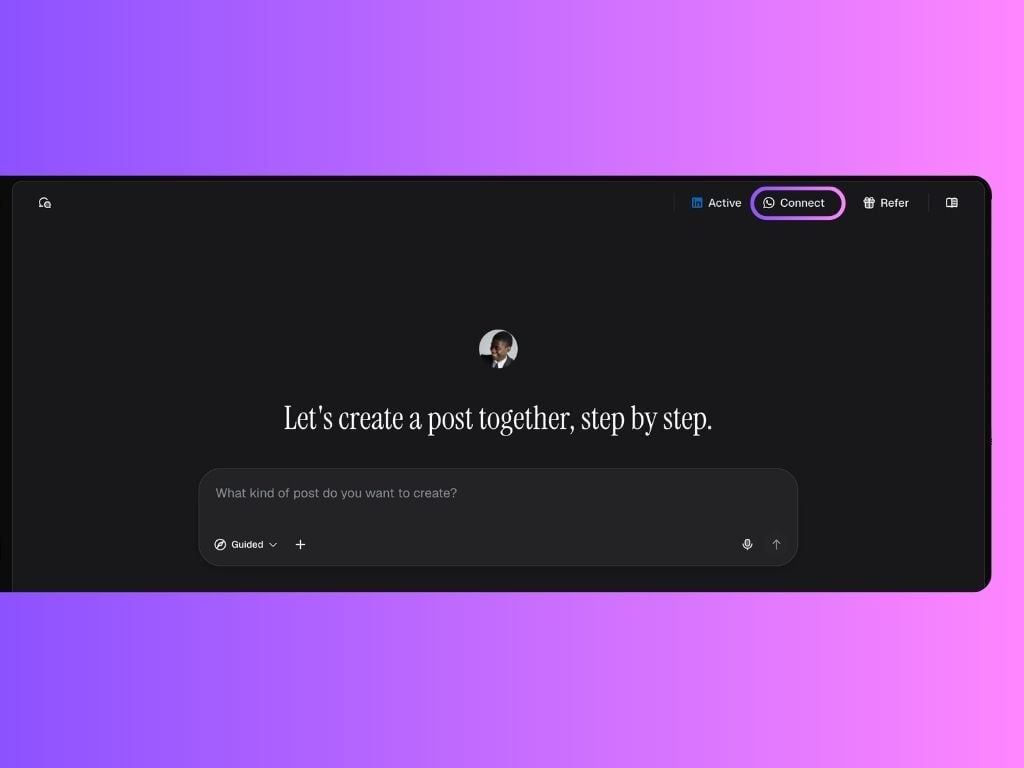
1. Open the Personal Brand you want to connect.
2. On the Dashboard, click on the **WhatsApp icon** on the top right corner.
3. A QR code will appear.
4. Scan the QR code with your phone to connect.
 ### Via Settings:
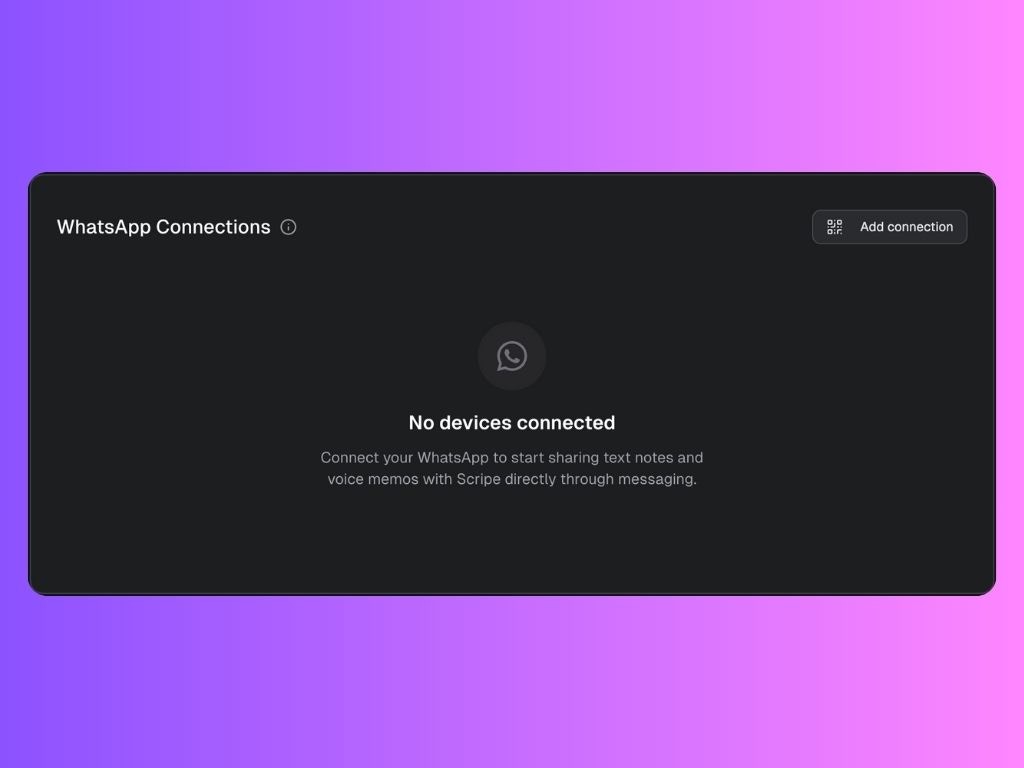
1. Go to your **Settings** in Scripe and click on the [Personal Brand](/settings/personalbrand) you want to connect.
2. Under **WhatsApp Connections**, click **Add Connection**.
3. A QR code will appear.
4. Scan the QRcode with your phone to connect.
### Via Settings:
1. Go to your **Settings** in Scripe and click on the [Personal Brand](/settings/personalbrand) you want to connect.
2. Under **WhatsApp Connections**, click **Add Connection**.
3. A QR code will appear.
4. Scan the QRcode with your phone to connect.
 ### Via Sources:
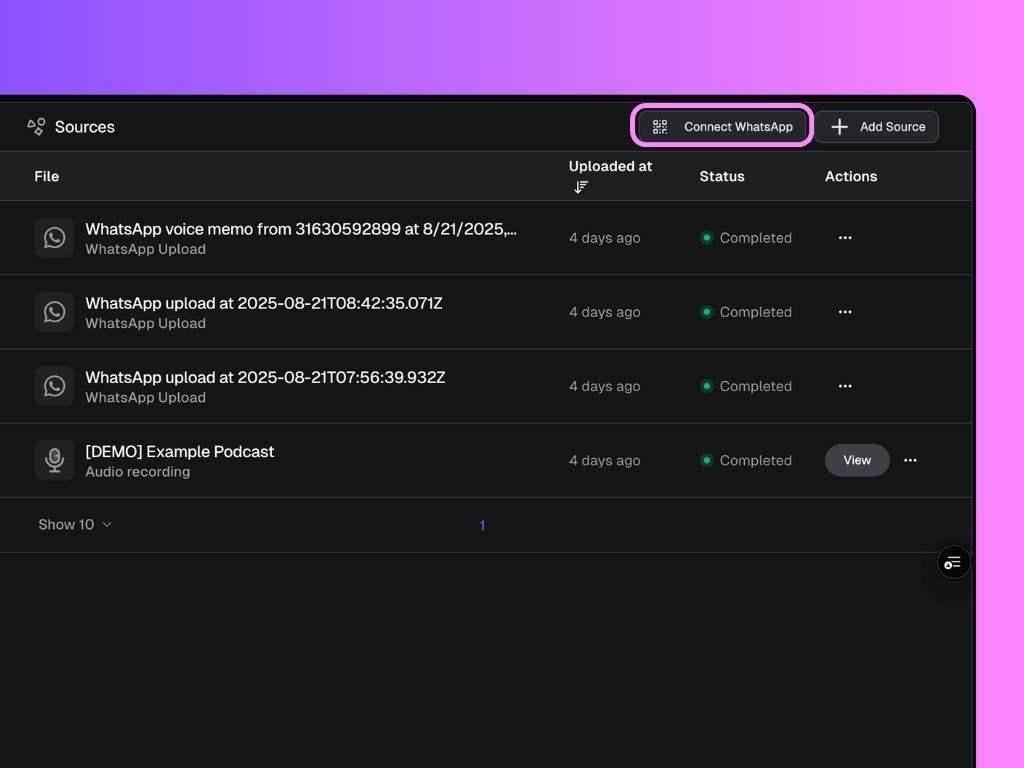
1. In your dashboard sidebar, go to **Sources**.
2. At the top of the page, click **Connect WhatsApp**.
3. A QR code will be displayed.
4. Open WhatsApp on your phone, scan the QR code, and you’re connected.
### Via Sources:
1. In your dashboard sidebar, go to **Sources**.
2. At the top of the page, click **Connect WhatsApp**.
3. A QR code will be displayed.
4. Open WhatsApp on your phone, scan the QR code, and you’re connected.
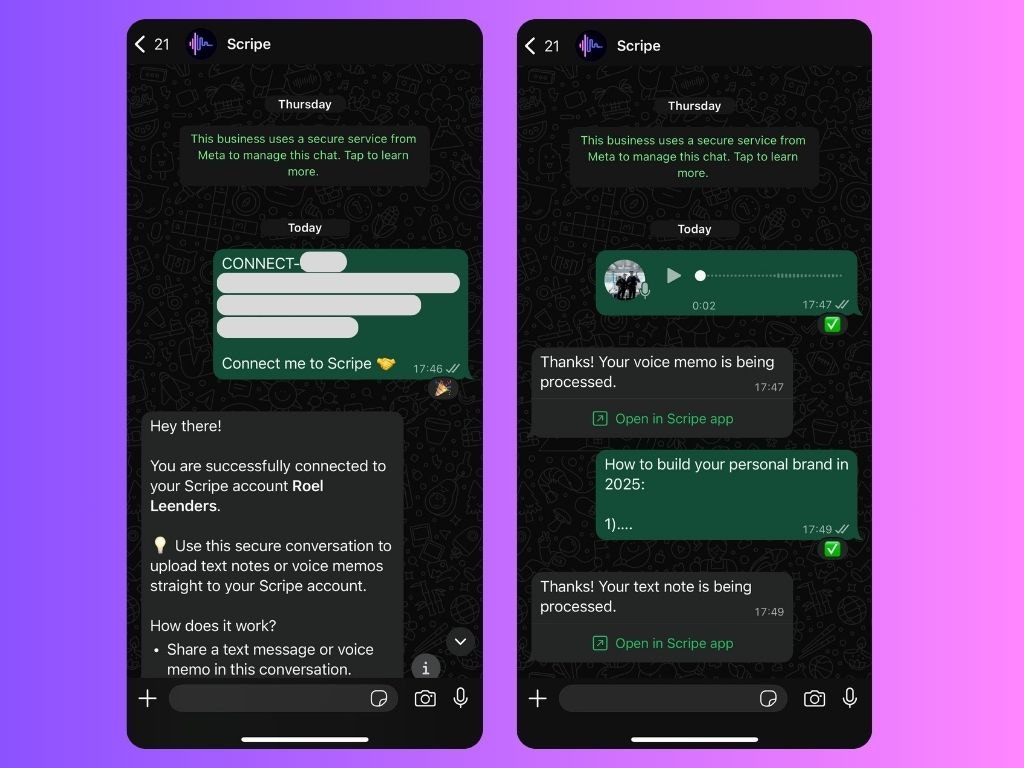
 Once connected, you’ll receive a confirmation message in WhatsApp with:
* The project name you’re connected to
* Instructions on how to submit your inputs
* A **Visit FAQ** link (to this help article)
* An **Unsubscribe** button (to disconnect)
## Step 2: Send Voice or Text Memos
After connecting your device:
* Open the chat in WhatsApp.
* Record a **voice memo** or type a **text message**.
* Send it as you normally would.
**What happens next:**
* Scripe processes your memo.
* You’ll receive a confirmation link in WhatsApp.
* Your memo appears in Scripe under your [project uploads](/sidebar/uploads).
* Click on the memo to see the posts generated from it.
Once connected, you’ll receive a confirmation message in WhatsApp with:
* The project name you’re connected to
* Instructions on how to submit your inputs
* A **Visit FAQ** link (to this help article)
* An **Unsubscribe** button (to disconnect)
## Step 2: Send Voice or Text Memos
After connecting your device:
* Open the chat in WhatsApp.
* Record a **voice memo** or type a **text message**.
* Send it as you normally would.
**What happens next:**
* Scripe processes your memo.
* You’ll receive a confirmation link in WhatsApp.
* Your memo appears in Scripe under your [project uploads](/sidebar/uploads).
* Click on the memo to see the posts generated from it.
 ## Manage Your WhatsApp Connection
You can manage connections anytime from your **Settings → Personal Brand → Whatsapp Connections**.
Options available:
* **Add** a connection
* **Remove** existing connection
**A WhatsApp number can only be active on one personal brand at a time.** If you connect your device to a new project, it will automatically disconnect from the previous one.
**Example workflow for switching your WhatsApp connection to another Personal Brand:**
1. You connect your WhatsApp to Personal Brand A.
2. You send a voice memo. It shows up in Personal Brand A’s uploads.
3. You later connect the same WhatsApp number to Personal Brand B.
* Personal Brand A disconnects automatically.
* New memos will now appear in Personal Brand B.
## FAQ
You can use both. Once your device is connected to Scripe, you’re free to send memos from either the mobile app or WhatsApp Web — whichever is more convenient.
Your memo is processed almost instantly. In most cases, it will appear in Scripe within just a few seconds of sending it.
There’s no strict limit on the number of memos you can upload. However, we recommend using good judgment to keep your workspace organized and easy to manage.
No. Disconnecting only stops new memos from coming in. Any memos you’ve already uploaded will remain safely stored in your Personal Brand.
No, you don’t. Once your WhatsApp device is connected, the link remains active until you choose to disconnect it manually. Logging out of Scripe won’t affect the connection.
Each Personal Brand can only be linked to one WhatsApp number at a time. If multiple team members share access to the same WhatsApp number, they can all use it for sending memos to the same Personal Brand.
## Manage Your WhatsApp Connection
You can manage connections anytime from your **Settings → Personal Brand → Whatsapp Connections**.
Options available:
* **Add** a connection
* **Remove** existing connection
**A WhatsApp number can only be active on one personal brand at a time.** If you connect your device to a new project, it will automatically disconnect from the previous one.
**Example workflow for switching your WhatsApp connection to another Personal Brand:**
1. You connect your WhatsApp to Personal Brand A.
2. You send a voice memo. It shows up in Personal Brand A’s uploads.
3. You later connect the same WhatsApp number to Personal Brand B.
* Personal Brand A disconnects automatically.
* New memos will now appear in Personal Brand B.
## FAQ
You can use both. Once your device is connected to Scripe, you’re free to send memos from either the mobile app or WhatsApp Web — whichever is more convenient.
Your memo is processed almost instantly. In most cases, it will appear in Scripe within just a few seconds of sending it.
There’s no strict limit on the number of memos you can upload. However, we recommend using good judgment to keep your workspace organized and easy to manage.
No. Disconnecting only stops new memos from coming in. Any memos you’ve already uploaded will remain safely stored in your Personal Brand.
No, you don’t. Once your WhatsApp device is connected, the link remains active until you choose to disconnect it manually. Logging out of Scripe won’t affect the connection.
Each Personal Brand can only be linked to one WhatsApp number at a time. If multiple team members share access to the same WhatsApp number, they can all use it for sending memos to the same Personal Brand.