> ## Documentation Index
> Fetch the complete documentation index at: https://docs.scripe.io/llms.txt
> Use this file to discover all available pages before exploring further.
# Carousel
The **Carousel** feature in Scripe allows you to turn your ideas into scroll-friendly, multi-slide LinkedIn carousels. You can design slides, customize layouts, add visuals, and export everything as a ready-to-post PDF.
### How It Works
* From your editor, click the **"Add Media"** below the text draft.
* Go to the **Carousel** tab at the top to open the Carousel Editor.
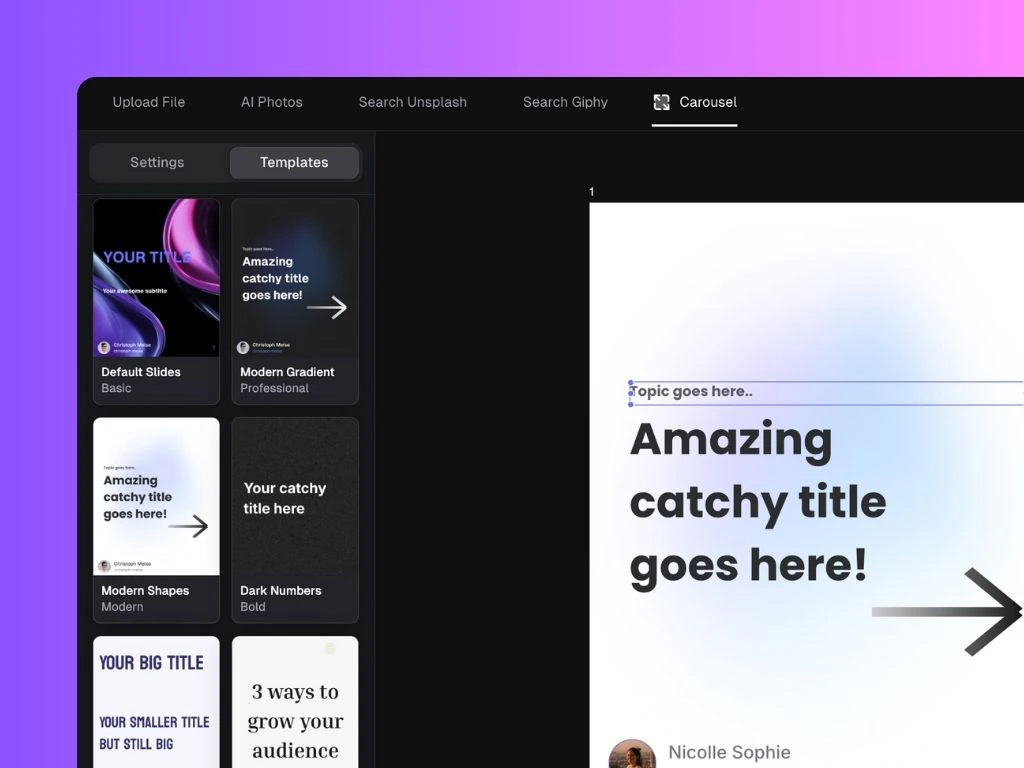 **Here you can:**
* Click **"AI Generate"** in the bottom bar to instantly create a visual version of your post.
* Set up general **Settings** such as custom colors and text font that are applied to all slides.
* Select between pre-set templates.
* Add Text or Images using the buttons in the bottom bar.
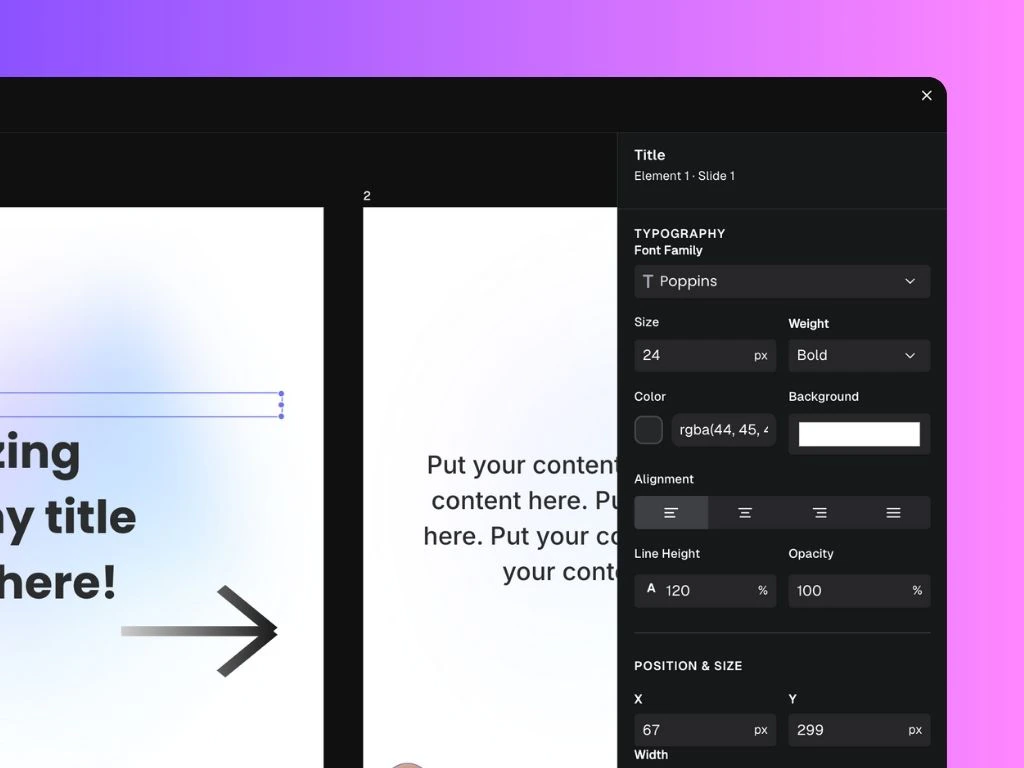
**To customize your layout even further:**
* Clicking on any item inside the slide and tweak the properties on the **right side bar:**
* Update fonts family, size, alignement, weight and color
* Adjust position and size of all objects with higher precision
* Control an image or object opacity and borders
**Here you can:**
* Click **"AI Generate"** in the bottom bar to instantly create a visual version of your post.
* Set up general **Settings** such as custom colors and text font that are applied to all slides.
* Select between pre-set templates.
* Add Text or Images using the buttons in the bottom bar.
**To customize your layout even further:**
* Clicking on any item inside the slide and tweak the properties on the **right side bar:**
* Update fonts family, size, alignement, weight and color
* Adjust position and size of all objects with higher precision
* Control an image or object opacity and borders
 Use carousels for storytelling, list posts, or step-by-step breakdowns — they work especially well for educational or inspirational content!
## How to Download & Post Your Carousel on LinkedIn
Once your carousel is ready in Scripe, here’s how to download and publish it to LinkedIn:
### Step 1: Download Your Carousel
* After customizing your slides, click **Export** in the bottom bar.
* Your carousel will be saved as a **PDF file**, optimized for LinkedIn.
### Step 2: Post It on LinkedIn
1. Go to LinkedIn and start a new post
2. Click the **"+"** icon to find the **“Document”** icon (📄)
3. Upload the PDF file you just downloaded from Scripe
4. In Scripe, click **“Copy to clipboard”** to grab your post caption
5. Paste the text into the LinkedIn caption box
6. Hit **Post** — and you're live!
## Tips for Best Results
* Keep your first slide bold and simple to drive swipe-through.
* Use high contrast between text and background.
* Aim for 5–10 slides for best engagement.
* Use consistent spacing and font styles to maintain a clean look.
* Keep the text short as LinkedIn users swipe fast.
Use carousels for storytelling, list posts, or step-by-step breakdowns — they work especially well for educational or inspirational content!
## How to Download & Post Your Carousel on LinkedIn
Once your carousel is ready in Scripe, here’s how to download and publish it to LinkedIn:
### Step 1: Download Your Carousel
* After customizing your slides, click **Export** in the bottom bar.
* Your carousel will be saved as a **PDF file**, optimized for LinkedIn.
### Step 2: Post It on LinkedIn
1. Go to LinkedIn and start a new post
2. Click the **"+"** icon to find the **“Document”** icon (📄)
3. Upload the PDF file you just downloaded from Scripe
4. In Scripe, click **“Copy to clipboard”** to grab your post caption
5. Paste the text into the LinkedIn caption box
6. Hit **Post** — and you're live!
## Tips for Best Results
* Keep your first slide bold and simple to drive swipe-through.
* Use high contrast between text and background.
* Aim for 5–10 slides for best engagement.
* Use consistent spacing and font styles to maintain a clean look.
* Keep the text short as LinkedIn users swipe fast.