> ## Documentation Index
> Fetch the complete documentation index at: https://docs.scripe.io/llms.txt
> Use this file to discover all available pages before exploring further.
# Auto Engagement
The Auto Engagement feature helps boost your post’s visibility by automatically scheduling likes, comments, and reshares from your connected team accounts.
This feature is only available on the Business Plan.
 ## How to Set Up Auto Engagement
Open one of your posts in Scripe and scroll down to the **Auto Engagement** section.
You have two ways to add engagements:
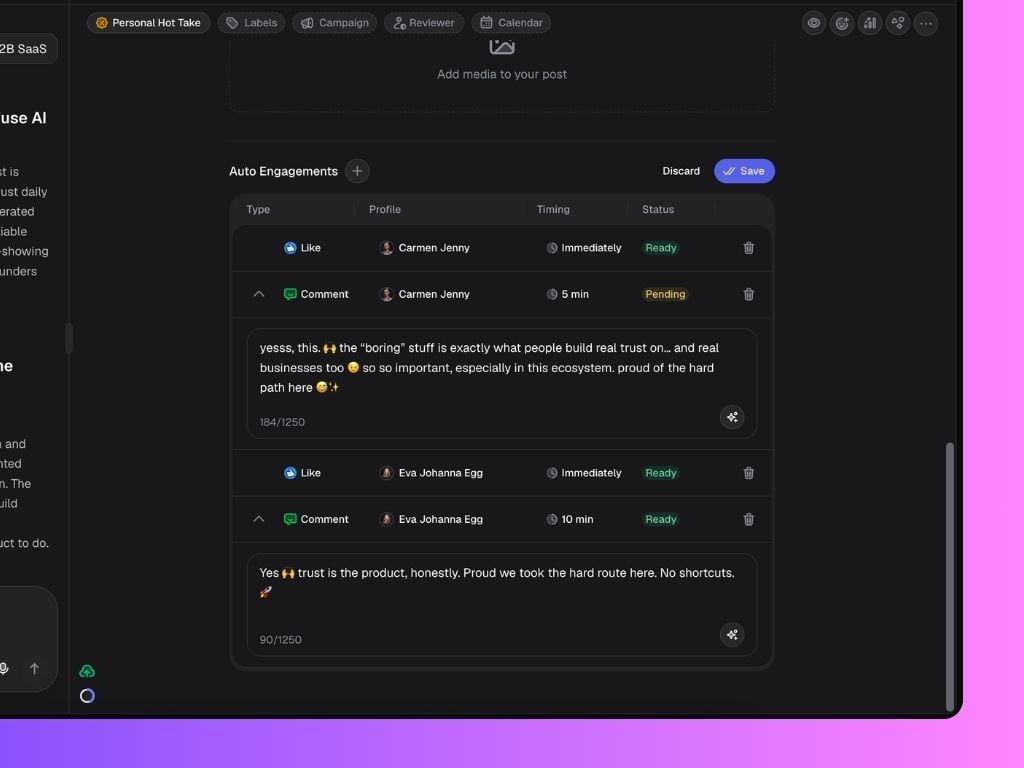
1. Click **Generate Engagements** and Scripe will automatically create a set of suggested likes and AI-generated comments from available team accounts. You can review and edit everything before saving.
## How to Set Up Auto Engagement
Open one of your posts in Scripe and scroll down to the **Auto Engagement** section.
You have two ways to add engagements:
1. Click **Generate Engagements** and Scripe will automatically create a set of suggested likes and AI-generated comments from available team accounts. You can review and edit everything before saving.
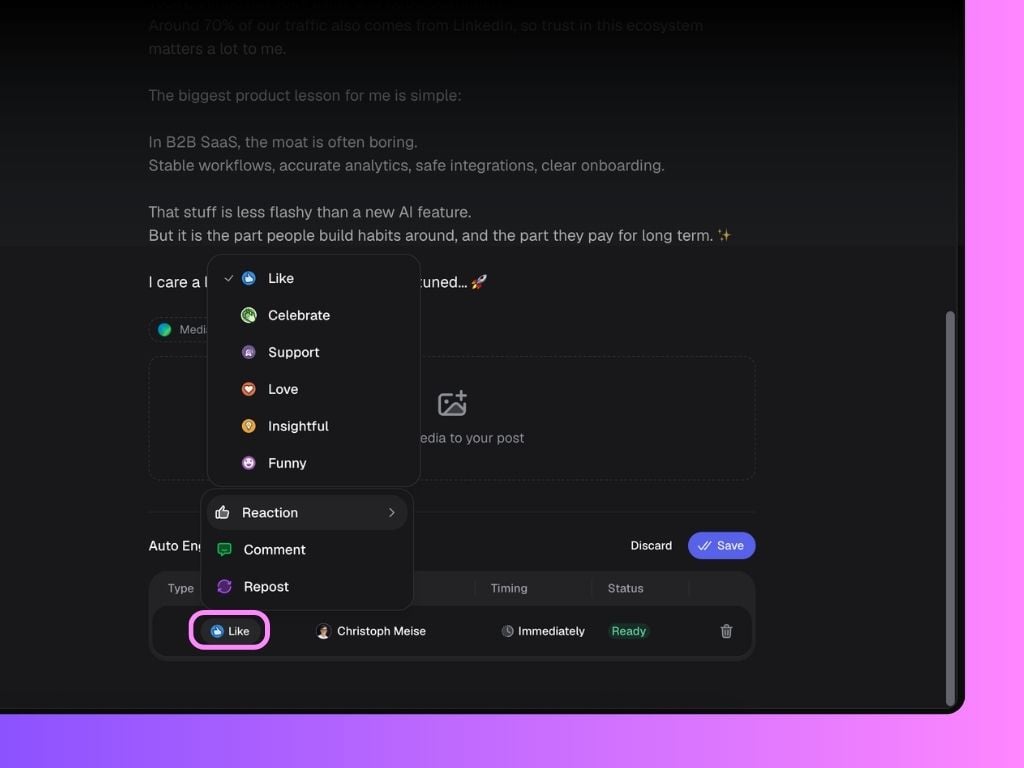
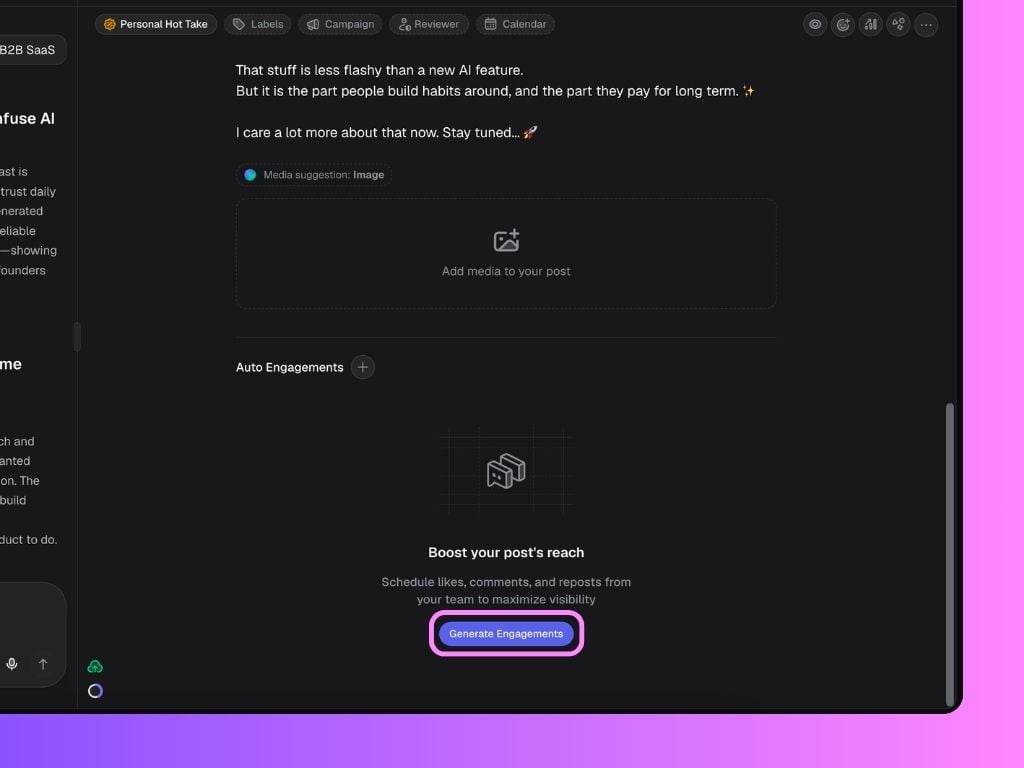 2. Click the **+ button** next to Auto Engagements to manually add likes, comments and reshares.
You can choose:
* which profile should engage
* the type of engagement
* when it should happen
* the exact comment text (for comments)
Generated comments can always be edited manually before publishing. You can also regenerate individual comments if you want a different variation.
2. Click the **+ button** next to Auto Engagements to manually add likes, comments and reshares.
You can choose:
* which profile should engage
* the type of engagement
* when it should happen
* the exact comment text (for comments)
Generated comments can always be edited manually before publishing. You can also regenerate individual comments if you want a different variation.
 ## Who Can Be Used for Auto Engagements?
Only accounts that meet both conditions below can be selected for auto-engagement:
1. The LinkedIn account must be connected to Scripe
2. Engagements must be enabled in that Personal Brand's settings
You can manage this under: Settings → [Personal Brand](/settings/personalbrand) → Engagement Settings
## Engagement Settings Explained
Each Personal Brand can control whether other workspace members are allowed to use their account for:
* Likes
* Comments
* Reshares
By default:
* **Likes** → ON
* **Comments** → ON
* **Reshares** → REQUEST
When Reshares are set to **Request**, the user will need to approve the reshare before it gets published.
You can also completely disable engagements for your account at any time from the same settings page.
## AI Auto-Comments
Inside the Engagement Settings page, users can also add example comments they’ve written before.
These examples help Scripe generate comments that better match their:
* tone of voice
* writing style
* personality
The AI also takes the Personal Brand’s Tone of Voice settings into account when generating comments automatically.
## Who Can Be Used for Auto Engagements?
Only accounts that meet both conditions below can be selected for auto-engagement:
1. The LinkedIn account must be connected to Scripe
2. Engagements must be enabled in that Personal Brand's settings
You can manage this under: Settings → [Personal Brand](/settings/personalbrand) → Engagement Settings
## Engagement Settings Explained
Each Personal Brand can control whether other workspace members are allowed to use their account for:
* Likes
* Comments
* Reshares
By default:
* **Likes** → ON
* **Comments** → ON
* **Reshares** → REQUEST
When Reshares are set to **Request**, the user will need to approve the reshare before it gets published.
You can also completely disable engagements for your account at any time from the same settings page.
## AI Auto-Comments
Inside the Engagement Settings page, users can also add example comments they’ve written before.
These examples help Scripe generate comments that better match their:
* tone of voice
* writing style
* personality
The AI also takes the Personal Brand’s Tone of Voice settings into account when generating comments automatically.