> ## Documentation Index
> Fetch the complete documentation index at: https://docs.scripe.io/llms.txt
> Use this file to discover all available pages before exploring further.
# Scripe for Agencies & Partners
Scripe is built to help agencies streamline content creation and management across multiple LinkedIn accounts. Whether you manage three or thirty clients, this guide explains how **workspaces**, **personal brands**, **roles**, and **billing** work together — so you can scale without chaos.
## TL;DR: Why Agencies Use Scripe
* Manage unlimited clients & brands with **one login**.
* Run entire **employee advocacy programs** in one workspace.
* Save \~80% of content production time with **AI drafts & repurposing**.
* Automate client reporting with **analytics dashboards**.
* Deliver more content, faster, without scaling headcount.
## Managing Clients at Scale in Scripe
Before working with a client, we recommend that you:
1. **Get familiar with Scripe** – follow this [step-by-step guide](/started/easy-set-up) to set up **your own workspace first** and learn the platform inside out.
2. [Join our Workshops](https://lu.ma/scripe?k=c) – bring questions, learn best practices, and get support.
### 1. Workspaces: Organize by Client
In the **Business plan**, you get **unlimited workspaces**.
Workspaces act as collaboration hubs where you and your team (or your client’s team) can manage everything in one place.
* **One client = one workspace** → Keeps their content, analytics, and strategy completely separate.
* **Unlimited personal brands & users per workspace** → Add as many LinkedIn accounts and collaborators as you need. Pay per LinkedIn account connected.
* **One bill across all workspaces** → Even if you manage dozens of clients in separate workspaces, everything is handled under a single subscription.
If multiple people from one company work together, keep them in the **same workspace**. \
\
If you manage completely different companies (shouldn’t see each other’s data), create **separate workspaces** for them.
**If you're ready to set up Scripe for your clients, please follow the tutorials below:**
* [DFY Offer Set-Up: Managing Client’s Content in Scripe](/agencies/setup-for-client)
* [DWY Offer Set-Up: Working in a Client’s Workspace in Scripe](/agencies/client-setup)
### 2. Personal Brands: LinkedIn Accounts you connect with Scripe
A **personal brand** in Scripe is simply one LinkedIn account connected to your workspace.
* Billing scales with the number of LinkedIn accounts connected.
* Each additional LinkedIn account you connect to your workspace as a full seat in the Business Plan costs 45 euros/month.
* LinkedIn accounts can also be connected as Amplifiers (auto-engagement + analytics access only). An Amplifier seat costs 20 euros/month.
* As an agency, you can add personal brands across multiple workspaces, all tied into your single Business subscription.
Example: If you manage 12 LinkedIn profiles across 4 clients, you’ll create **4 workspaces** with a total of **12 personal brands**. All of them roll up into your Business plan billing.
### 3. User Roles & Permissions
When inviting someone to a workspace, you can assign roles:
* **Admin** – Full access to everything.
* **Manager** – Manage members and accounts. No billing access.
* **Creator** – Can fully create and post on assigned accounts.
* **Assistant** – Supports with posts but can't publish.
* **Client** – Read-only review of assigned posts + analytics.
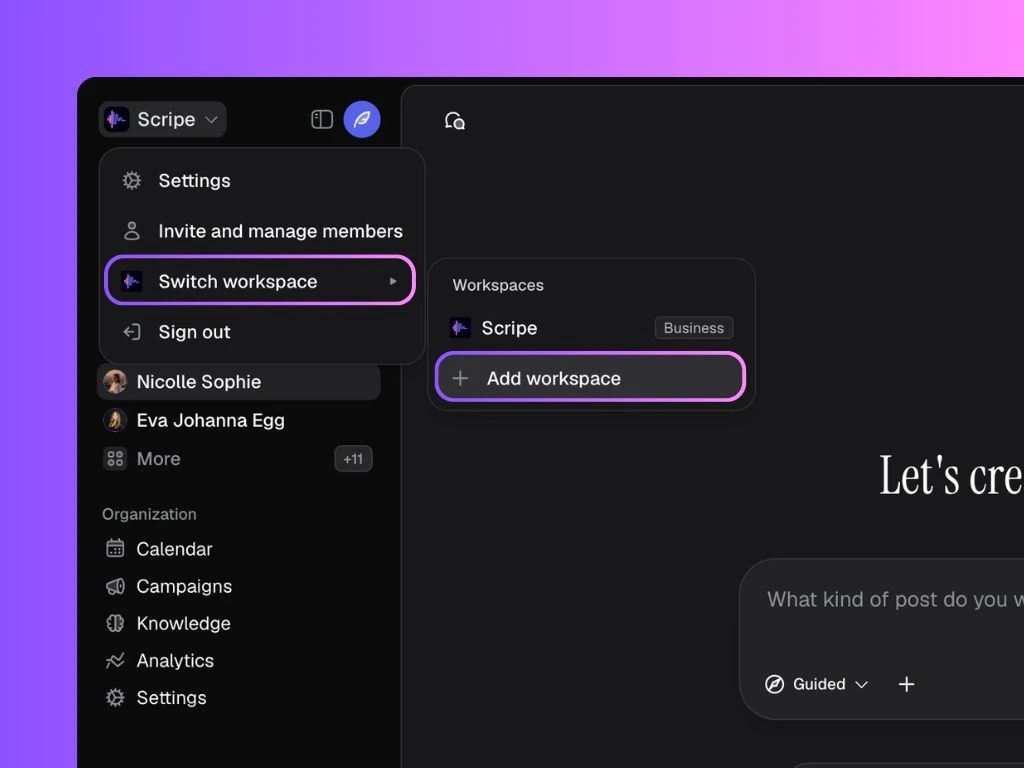
### 4. Switching Between Workspaces
1. Go to **Overview** in the sidebar.
2. Open the **Switch Workspace** menu.
3. Select the workspace you want to enter.
You’ll switch instantly, no need to log out. This lets your team jump between clients in seconds.
### 5. Powerful Collaboration & Content Creation Features:
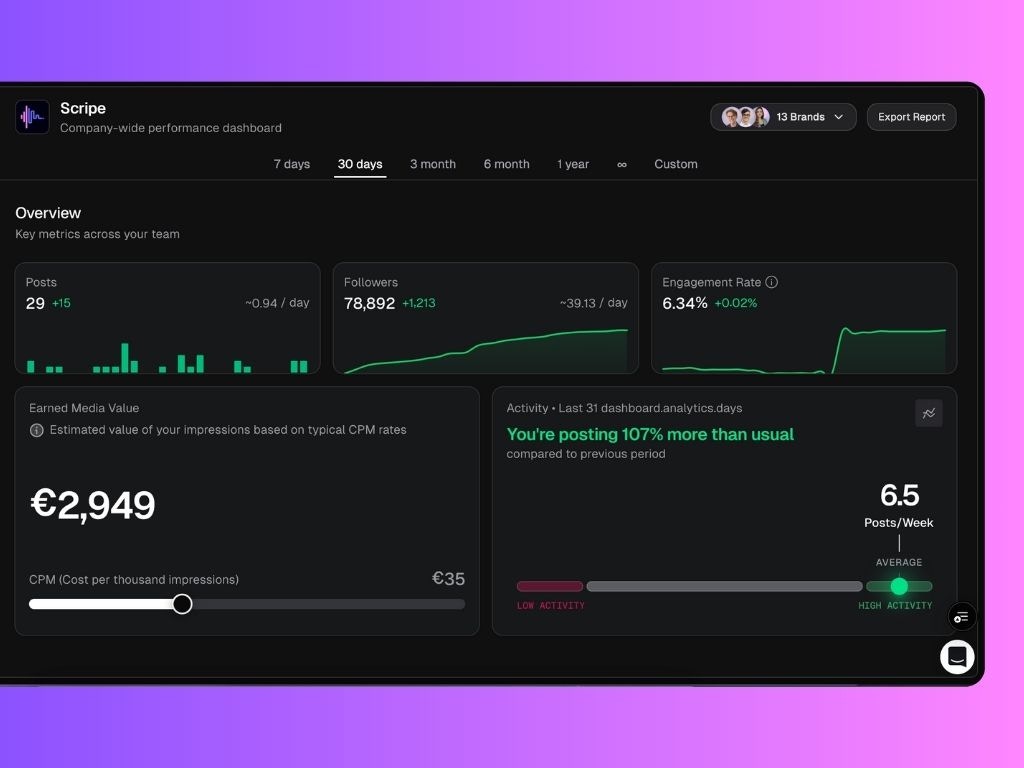
**Analytics Dashboard**
View combined analytics for all personal brands in a workspace, perfect for reporting total reach, impressions, and engagement to clients.
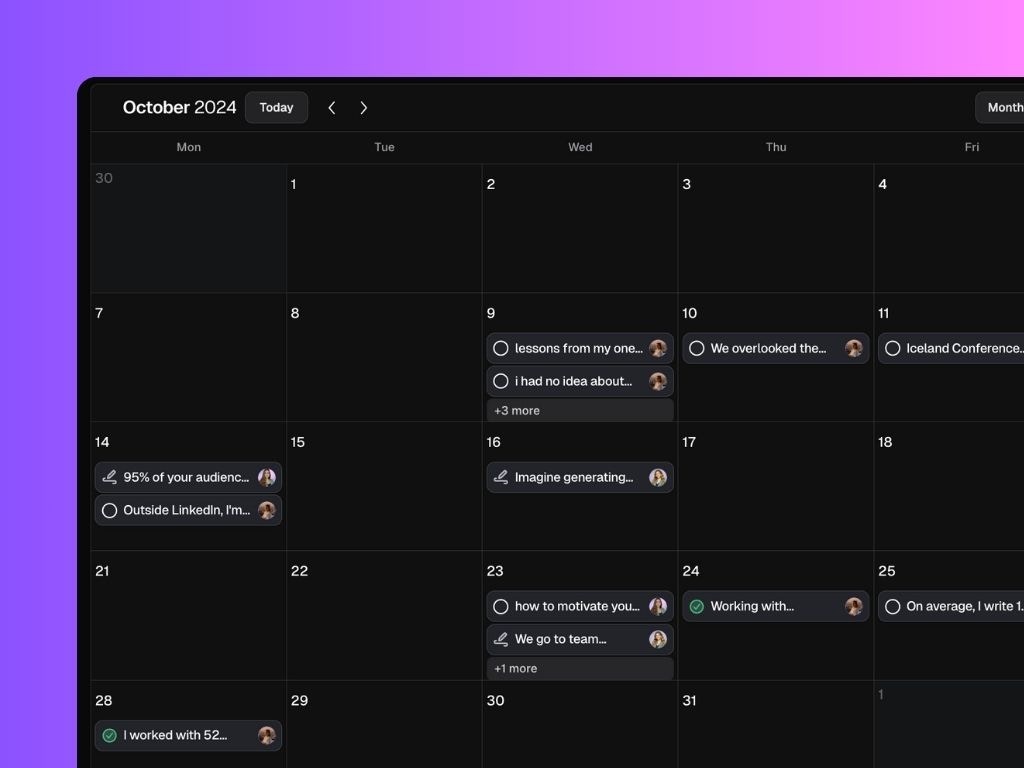
**Company Calendar**
* See all posts from all personal brands in one place.
* Add notes for specific personal brands (e.g., “Post about topic X next week”).
* Track who posted what and when.
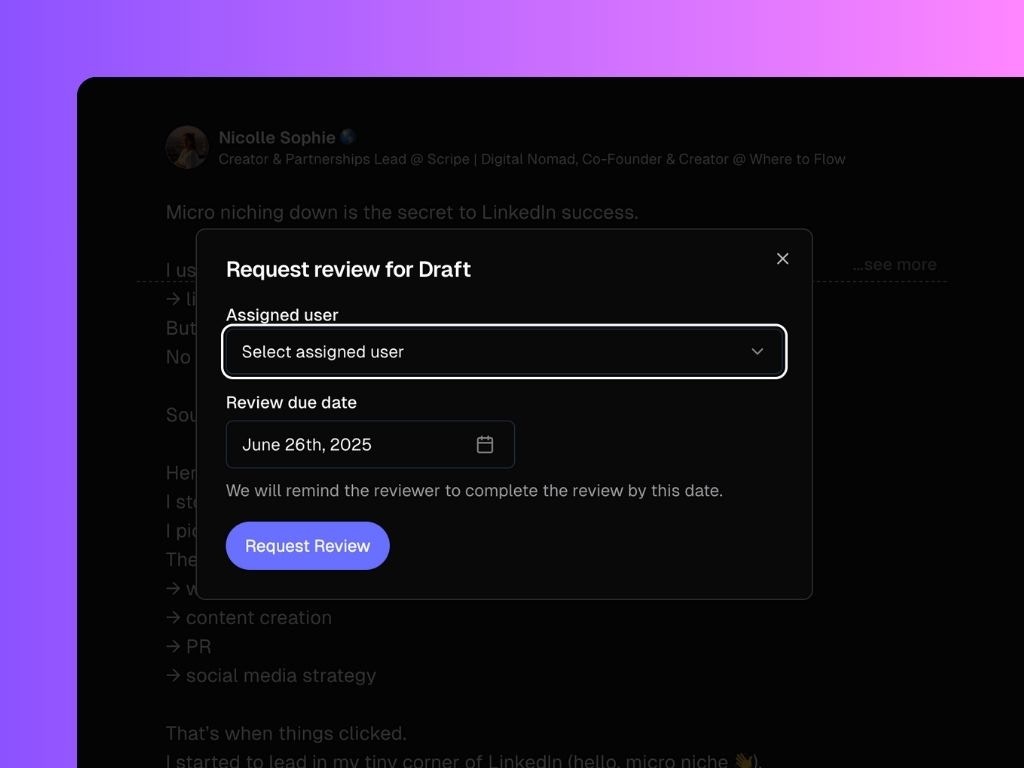
**Content Review Workflow**
* You can request content reviews from other users.
* Assign a reviewer and a deadline, and they’ll get an email and notification.
**Build a Knowledge Base & Strategy**
* Store all client material in one place: transcripts, notes, websites, and random briefs.
* Define a content strategy for your client and get done-for-you posts generated every week.
**Generate Content**
Scripe gives you multiple ways to create and repurpose content for your clients:
1. [Scripe Chat Modes](/post/chat-modes)
2. [Weekly Done-For-You Posts](/post/ai-powered)
3. [Quick Create](/post/quick-create)
You can also [create content directly from WhatsApp](/integrations/whats-app). Send voice notes or text messages, and Scripe will instantly turn them into ready-to-edit LinkedIn posts inside your workspace.
 ### 5. Powerful Collaboration & Content Creation Features:
**Analytics Dashboard**
View combined analytics for all personal brands in a workspace, perfect for reporting total reach, impressions, and engagement to clients.
### 5. Powerful Collaboration & Content Creation Features:
**Analytics Dashboard**
View combined analytics for all personal brands in a workspace, perfect for reporting total reach, impressions, and engagement to clients.
 **Company Calendar**
* See all posts from all personal brands in one place.
* Add notes for specific personal brands (e.g., “Post about topic X next week”).
* Track who posted what and when.
**Company Calendar**
* See all posts from all personal brands in one place.
* Add notes for specific personal brands (e.g., “Post about topic X next week”).
* Track who posted what and when.
 **Content Review Workflow**
* You can request content reviews from other users.
* Assign a reviewer and a deadline, and they’ll get an email and notification.
**Content Review Workflow**
* You can request content reviews from other users.
* Assign a reviewer and a deadline, and they’ll get an email and notification.
 **Build a Knowledge Base & Strategy**
* Store all client material in one place: transcripts, notes, websites, and random briefs.
* Define a content strategy for your client and get done-for-you posts generated every week.
**Generate Content**
Scripe gives you multiple ways to create and repurpose content for your clients:
1. [Scripe Chat Modes](/post/chat-modes)
2. [Weekly Done-For-You Posts](/post/ai-powered)
3. [Quick Create](/post/quick-create)
**Build a Knowledge Base & Strategy**
* Store all client material in one place: transcripts, notes, websites, and random briefs.
* Define a content strategy for your client and get done-for-you posts generated every week.
**Generate Content**
Scripe gives you multiple ways to create and repurpose content for your clients:
1. [Scripe Chat Modes](/post/chat-modes)
2. [Weekly Done-For-You Posts](/post/ai-powered)
3. [Quick Create](/post/quick-create)